Redwood: Use Electronic Signatures and Electronic Records When Releasing a Manufacturing Work Order
In prior releases, work order management tasks for searching, creating, editing, and viewing discrete and process manufacturing work orders launched in Redwood pages. The Work Orders page is accessible through the Work Execution landing page or the Production Supervision action. In regulated environments, work orders require validation of procedural clearance and compliance before initiating manufacturing execution activities. These checks can include material availability, equipment and labor qualifications, controlled documentation, and accurate labeling information. With this update, you can approve the release of a manufacturing work order by reviewing its electronic record and capturing electronic signatures through a deferred e-signature approval workflow using the Redwood user experience.
When the work order is released, the status is set to Pending Approval. The electronic record of the work order details is sent for approval. Once the work order is approved, then the status is set to Released. In case the work order is not approved and rejected, then the status reverts to Unreleased. You can review the status change history of the work order and the transitions from Unreleased to Pending Approval to Released. The approval process for releasing the work order is applicable only for the first time that the work order is released.
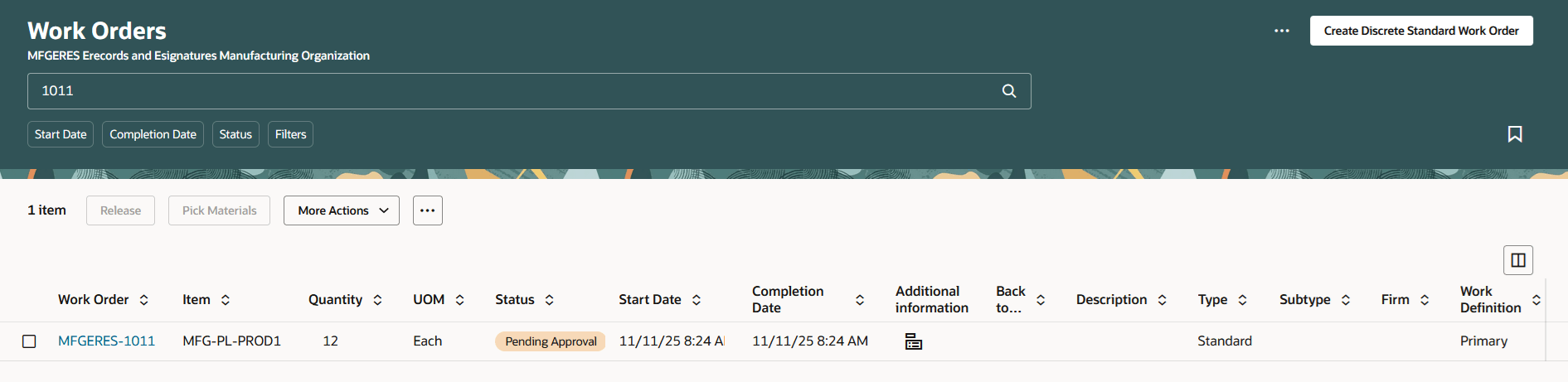
Manage Work Orders - Work Order in Pending Approval Status
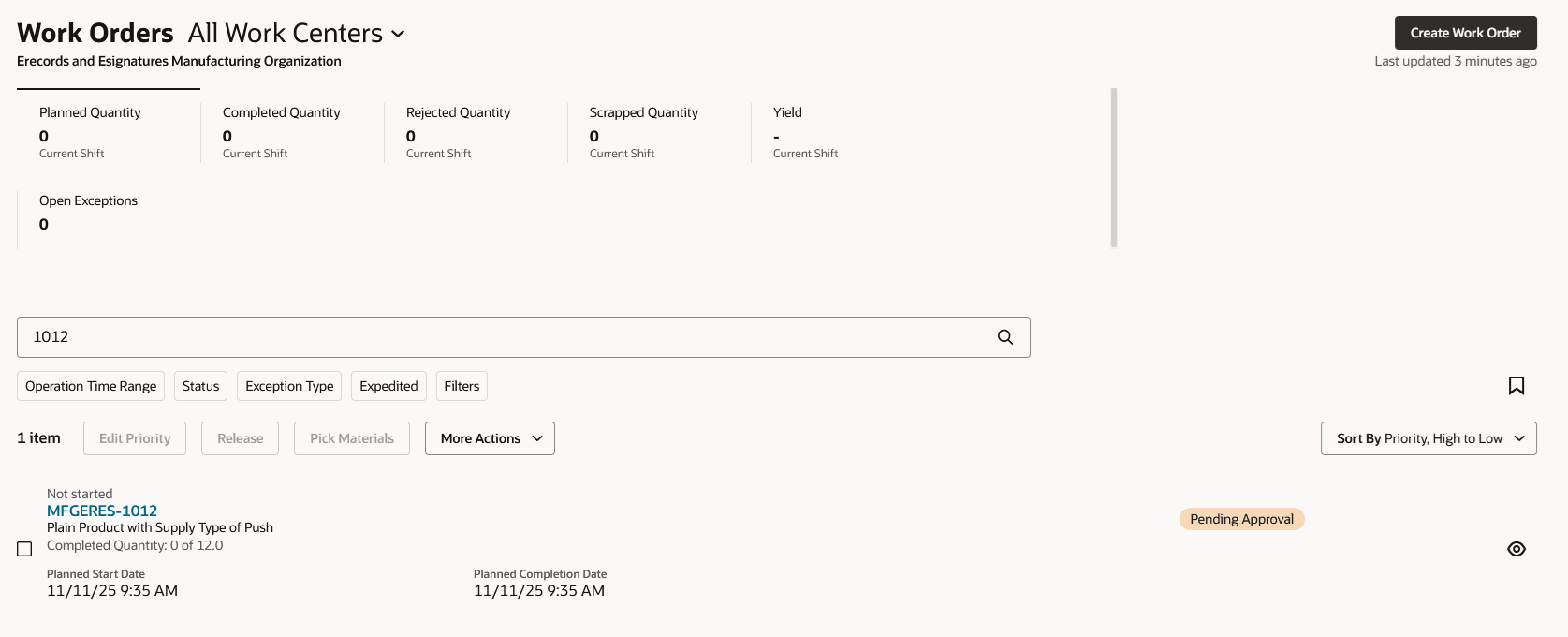
Production Supervision - Work Order in Pending Approval Status
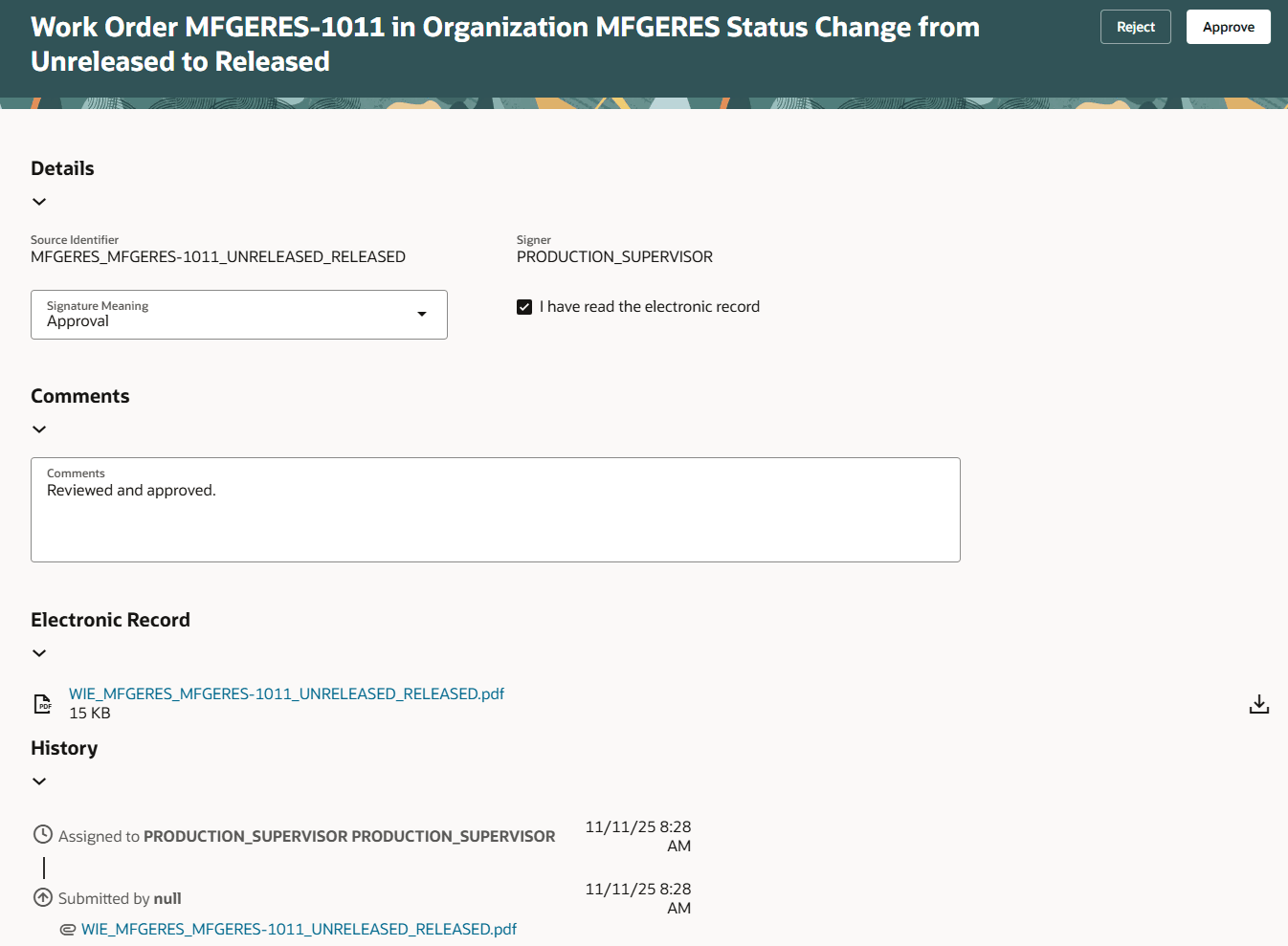
Work Order Approval with Electronic Record and Electronic Signature
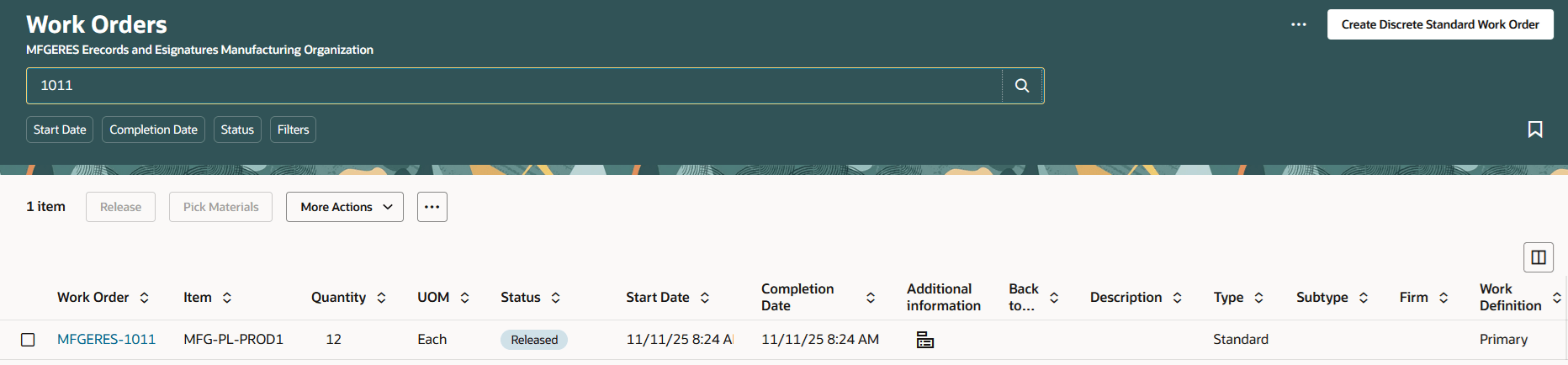
Work Order Approved - Released Status
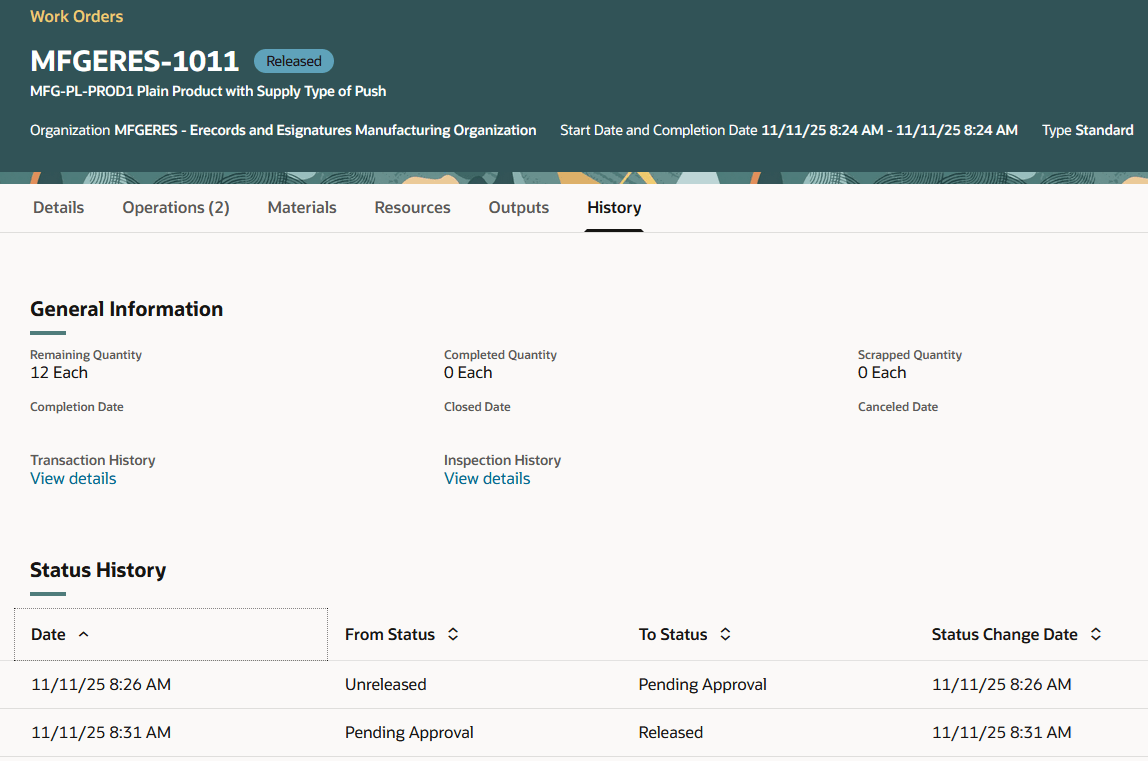
Work Order Status Change History
Electronic records and signatures enable a compliant and auditable work order release process, reducing risks associated with manual paperwork.
Here's the demo of these capabilities:
Steps to Enable and Configure
Follow these steps to use this feature:
- Set up the Profile to enable the Redwood experience for material transactions, as follows:
- In the Setup and Maintenance work area, search for and select the Manage Administrator Profile Values task.
- On the Manage Administrator Profile Values page, search for and select the ORA_WIE_MANAGE_WORK_ORDERS_REDWOOD_ENABLED profile option code.
- In the Profile Values section, set the Site level to Y or N. The default value of the profile option is Y.
- Y = Enables the feature.
- N = Disables the feature
- Click Save and Close. Changes in the profile value affect users the next time they sign in.
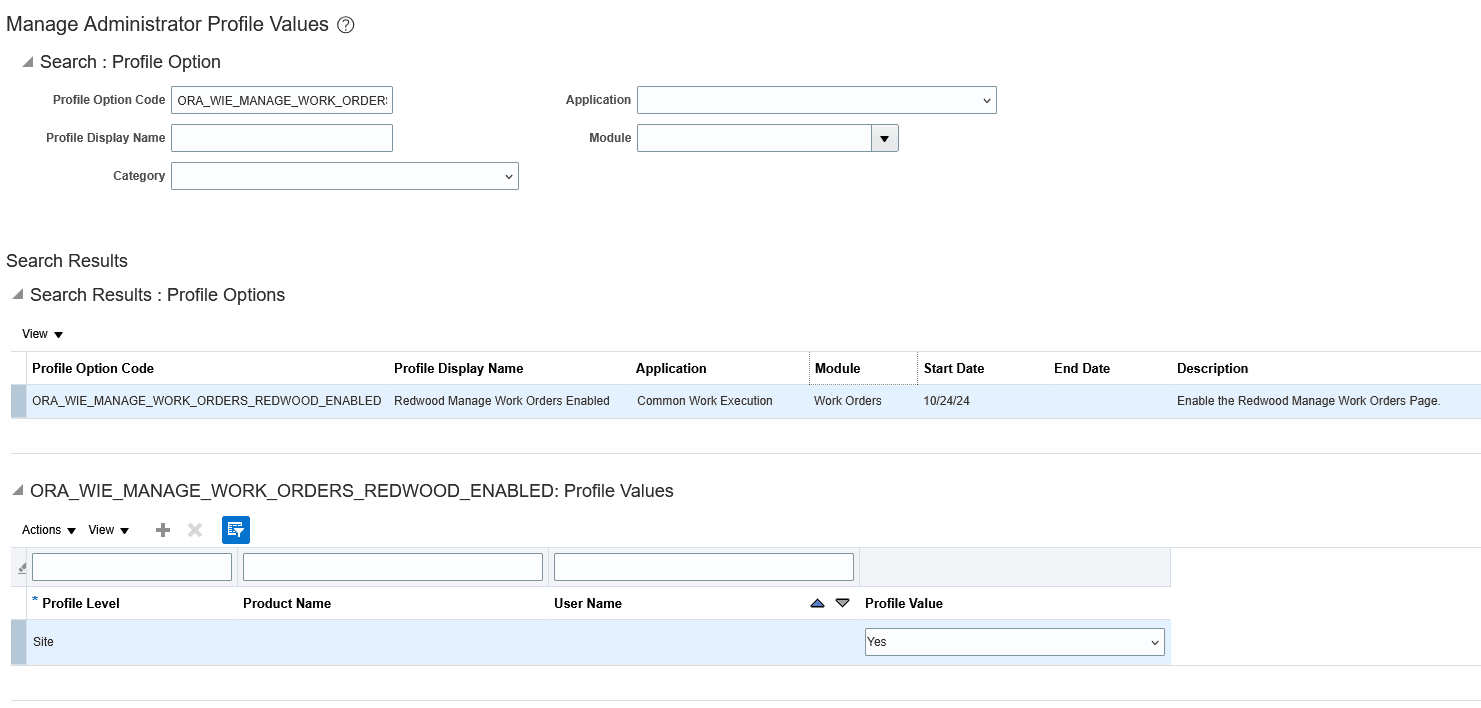
Profile Option for Accessing the Redwood Work Orders User Interface
- Enable the Opt In for the "Capture Electronic Records and Electronic Signatures for Supply Chain Management Transactions" feature.
- Configure e-signature preferences by enabling Manufacturing Work Order Approval Transaction (Task = WorkOrderDeferredApproval) for deferred electronic signature approval for an organization under the task Configure Electronic Signature Preferences. Refer to Configure E-Signature Preferences.
After you enable electronic signatures for a transaction, you should also define configurable business process rules in Oracle Business Process Management using the Manage Task Configurations for Supply Chain Management task, and the Manage Approval Groups task in the Setup and Maintenance work area to determine the approvers for each transaction.
Tips And Considerations
- Refer to the 25B feature Redwood: Search and Perform Mass Actions for Work Orders Using a New User Experience and 25C feature Redwood: Create and Edit Work Orders Using a New User Experience for more information about managing work orders in Redwood pages.
- Refer to the Overview of Electronic Signatures and Electronic Records for Work Order Approval and How You Capture E-Records and E-Signatures for Manufacturing Work Order Approval in Deferred Mode documentation for more information about work order approval using e-records and e-signatures.
- You can't mass approve the release of multiple work orders using the e-records and e-signatures process at this time.
- You can't approve work order release using FBDI, a REST API, or ADFdi at this time.
- For a consistent electronic recordkeeping compliance strategy using the Redwood user experience, you can also enable the corresponding features:
- Redwood: Enable Deferred Electronic Record and Electronic Signature for Manufacturing Work Definitions Using the Redwood User Experience in 25B
- Redwood: Use Electronic Signatures and Electronic Records When Creating and Editing a Standard Operation in 26A
- Redwood: Use Electronic Signatures and Electronic Records When Reporting Material Transactions for a Work Order Operations in 25C
- Redwood: Use Electronic Signatures and Electronic Records When Reporting Material Transactions During Production Execution in 26A
- Redwood: Use Electronic Signatures and Electronic Records When Completing Operations During Production Execution in 26A
- Redwood: Use Electronic Signatures and Electronic Records When Reporting Outputs During Production Execution in 26A
- Review Work Order Before Manual Completion and Submission for Approval in 26A
- Review and Approve a Completed Work Order for Closure in 26A
- Redwood: View Electronic Records Using a Redwood Page in 25B
- You can't enable e-records and e-signatures for flow schedule release approval.
Key Resources
- Watch the Redwood: Use Electronic Signatures and Electronic Records When Creating and Editing a Standard Operation demo.
- Refer to the 22D feature Enable Deferred Electronic Records and Electronic Signatures for Manufacturing Work Order Release for more information about capturing an electronic signature using a deferred approval process when changing a work order to the Released status through the Classic user interface.
- Refer to the Overview of Electronic Signatures and Electronic Records for Standard Operation Management and How You Capture E-Signatures and Generate E-Records for Standard Operation Management documentation for more information about standard operation management using e-records and e-signatures.
- Refer to Using E-Signatures and E-Records and Implementing E-Signatures and E-Records documentation for more information about e-signatures and e-records.
- Refer to the Oracle Fusion Cloud SCM: Using Manufacturing guide, available on the Oracle Help Center.
Access Requirements
Users who are assigned a configured job role that contains these privileges and codes can access this feature:
Manufacturing Privileges:
- Manage Work Order Headers (WIP_MANAGE_WORK_ORDER_HEADERS_PRIV)
- Supervise Production (WIP_SUPERVISE_PRODUCTION_PRIV)
Electronic Signature Approval Privileges:
- Electronic Signatures (EDR_ADD_ESIGNATURES_TRANSACTIONS_PRIV)
- View Electronic Records and Signatures (EDR_VIEW_RECORDS_ESIGNATURES_PRIV)
These privileges were available prior to this update.