Creating a Chart Configuration
Introduction
Chart in Communication Cloud Service helps you to visually represent customer-specific data, making it easier to communicate key insights and trends. It enables you to orchestrate Chart creation by adding Chart Group and configuring its components, such as Title, Plot, Area, Series Dataset, Value Axis, Category Axis, Labels, Marker, and Legends. You can associate the Chart configuration under Content configuration by selecting Chart as the Content Type and distribute it in PDF or HTML formats.
Components of Chart
Chart configuration involves several key components that create personalized, and dynamic Charts. These components ensure the efficiency and consistency in Chart creation.
- Title - A chart title provides a concise description of the chart’s subject or purpose. It helps viewers quickly understand what information the chart is presenting.
- Plot - The chart plot supports customizable style configurations for horizontal and vertical lines, allowing you to control their appearance within the plot area. This ensures the final chart output aligns with your organization’s branding and communication standards.
- Chart Area - The chart area is the space that contains the entire chart, including titles, legends, axis labels, and the plot area. It serves as the overall frame, ensuring all chart elements are presented cohesively and aligned with organizational branding.
- Value Axis - The value axis in a chart can be configured to accurately represent data intervals, as well as define starting and ending points. This ensures the chart provides a clear and precise depiction of data values in line with your setup requirements.
- Category Axis - The Category Axis displays series labels in a chart, organizing data into clear, structured categories for easier interpretation. By effectively arranging these labels, it enhances readability and simplifies data comparisons for more accurate insights.
- Category Labels - The Category Axis labels defines the Category Axis annotations.
- Series Data - Series data represents a collection of related data values within a chart, each linked to a specific data source. When combined with categories, series data enables accurate and organized graphical representations, managed through chart details and their relationships.
- Legends - Legends in a chart provide visual cues—such as colors or shapes—that differentiate various data series or categories. This enables readers to accurately interpret and distinguish data elements in the rendered chart output.
- Series Axis Labels - The Value Axis labels defines the Value Axis annotations.
- Marker - Chart markers are visual symbols used to highlight specific data points within a chart, drawing attention to key values or trends. By emphasizing important information, markers help enhance comprehension and facilitate deeper data analysis.
- Annotation- Annotations provides the preferred text or shapes in the Chart Plot in the proper place to enhance visual appeal and readability of the presented data.
The following image illustrates the Chart components: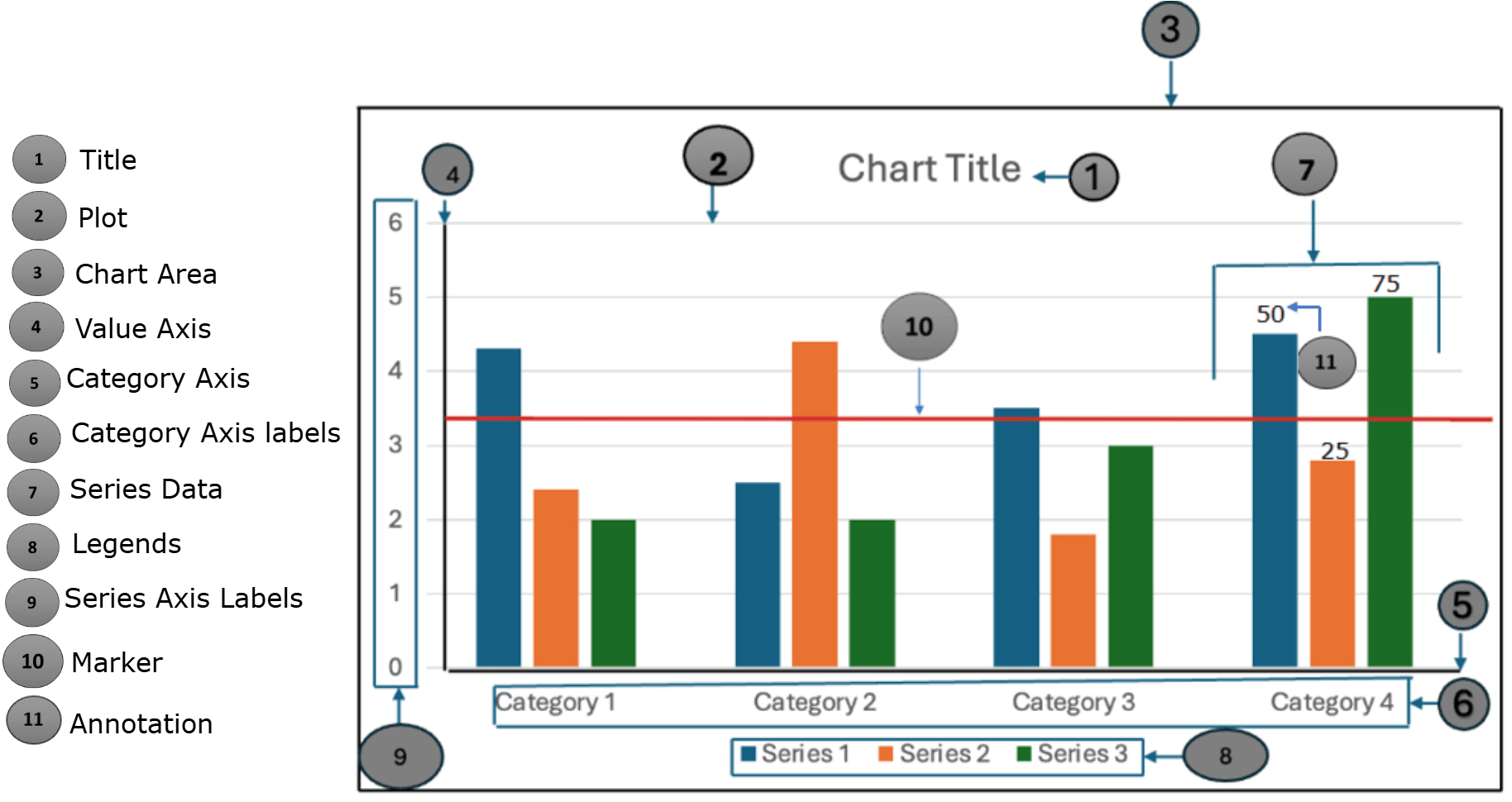
Prerequisites
Following are the prerequisites to consider before creating a configuration a Chart.
Note:
Ensure that you complete the prerequisite before proceeding.| Prerequisites | Details |
|---|---|
| Set the Config ID | Config ID must be Active.
Ensure all dependent configurations and associations are part of the same open Config ID. See Creating Config ID for more details. |
| Create entitlements | Ensure that you have the required entitlements to create a Chart.
|
| Create Chart Group configuration | Ensure that you have created Chart Group to add it in the Chart configuration. See Creating a Chart Group Configuration for more details. |
| Create Style configuration | Ensure that you have created the Style to add it in the Chart configuration. See Creating a Style and Supported Styles for Chart Configuration for more details. |
| Create User Defined Data configuration | Ensure that you have create User Defined Data configuration to add it in the Chart Configuration. See Creating a User Defined Data for more details. |
| Create Brand Color Series configuration | Ensure that you have created Brand Color Series to add it in the Chart Configuration. See Understanding Brand for more details. |
Supported Styles for Chart Configuration
Following are the supported Styles for Chart Configuration:
| Chart Components | Style Attributes |
|---|---|
| Chart Area | Background-color |
| Border | |
| Border-color | |
| Height | |
| Width | |
| Border-width | |
| Border-Style | |
| Category Axis Title and Value Axis Titles | Background-color |
| Margin | |
| Text-align | |
| Border | |
| Border-color | |
| Border-width | |
| Border-style | |
| Vertical-align | |
| Horizontal-align | |
| Width | |
| Height | |
| Transform | |
| Font-family | |
| Font-weight | |
| Font-style | |
| Font-size | |
| Plot Area | Border-color |
| Border-width | |
| Border-style | |
| Border | |
| Background-color | |
| Stroke-color | |
| Stroke-width | |
| Series Axis and Category Axis | Transform |
| Stroke-color | |
| Stroke-width | |
| Margin-top | |
| Margin-bottom | |
| Series Axis and Category Axis Tick Mark | Font-family |
| Font-size | |
| Font-weight | |
| Font-style | |
| Stroke-color | |
| Stroke-width | |
| Styles specific to Bar chart. | Border-color |
| Border-width | |
| Border-style | |
| Border | |
| Margin | |
| Bar-alignment | |
| Styles specific to Line chart | Stroke-color |
| Stroke-width | |
| Explode-percent | |
| Label-gap | |
| Label-link-visible | |
| Label-link-color | |
| Label-link-style | |
| Section-color | |
| Slice-gap | |
| Legend | Background-Color |
| Font-family | |
| Font-size | |
| Font-weight | |
| Font-style | |
| Markers | Stroke-color |
| Stroke-width | |
| Background-color | |
| Font-family | |
| Font-weight | |
| Font-style | |
| Font-size | |
| Border-color | |
| Border-width | |
| Annotations | Stroke-color |
| Stroke-width | |
| Background-color | |
| Font-family | |
| Font-weight | |
| Font-style | |
| Font-size | |
| Data Labels | Background-color |
| Font-family | |
| Font-size | |
| Font-weight | |
| Font-style | |
| Transform |
- Creating a Chart
- Creating a Chart Version
- Creating a Plot
- Creating a Series
Creating a Chart
- Access the Oracle Financial Services Cloud application.
- From Menu, select Configuration
- Under Configuration select Chart, then select Chart. This redirects you to Chart landing page.
- On Chart landing page, select Create.
- In Basic Information section, enter Name, Long Name, and Description (optional) to identify the Chart configuration.
- In Chart Group section, select Add Chart Group and select the Chart Group that you want to associate to the Chart configuration.
Note:
You can associate only one Chart Group per Chart configuration. - In User Defined Data Structure section, select Add User Defined Data Structure and add the User Defined Data Structure to the Chart configuration.
Note:
You can associate multiple User Defined Data Structures in a Chart configuration. Select Add Another User Defined Data Structure to add another User Defined Data Structure. - In Status section, Active Date is set to the current date when the Chart configuration is created. You can modify it to a future date, if required.
- Select Continue to continue creating Version of the Chart.
Creating a Chart Version
In the Chart Version configuration, you can set Type, Sub Type, Active Date, Alternate Text for the Chart, and associate Communication Style. These components decide the primary structure of the Chart.
- On Create Chart Version page, under Basic Information section, enter Name, Long Name, and Description (optional) to identify the Chart Version.
- Select Type to specify the type of the chart. Depending of the selection, Sub Type fields are available for selection.
- Select Sub Type to specify the sub type of the chart.
- In Status section the Active Date is set to the current date when the Chart Version is created. You can modify it to the future data, if required.
- Alternate Text is the text for the image of the Chart in the communication. In Alternate Text section, select Add and follow these steps:
- On Add Alternate Text page, select Source, then select the value based on you Source selection. This is optional.
Source Value Static Enter a string under Static Value. FieldName or FieldValue Under User Defined Data Field select Add User Defined Data Field to add the field name. - For Alternate Text as Static, in Basic Information section, enter Name, Long Name, and Description (optional) to identify the Alternate Text. For Alternate Text as FieldName or FieldValue, the User Defined Data Field name will be populated as Name, Long Name.
- In Status section, the Active Date is set to the current date when the Alternate Text is created. You can modify it to the future date, if required.
- Select Save & Exit to save the details and exit the page.
- On Add Alternate Text page, select Source, then select the value based on you Source selection. This is optional.
- In Associations section, select Add corresponding to Communication Style. Select the Communication Style that you want to associate to the Chart Version. This is optional.
- Select Save to save the details or Save & Continue to save the details and continue creating Chart Plot configuration.
Creating a Plot
In Chart Plot configuration, you can associate only one User Defined Data Field of Type 'Array', Communication Style and Brand Color Series that decides the appearance of data in a Chart.
- On Create Chart Plot page, in Basic Information section, enter Name,Long Name, and Description(optional) to identify the Chart Plot.
- In Data section, select Add User Defined Data Field, and select the User Defined Data Field that you want to associate to the Chart Plot.
- In Brand Color Series section, select Add Brand Color Series and select the Brand Color Series configuration that you want to add to the Chart Plot.
- In Status section the Active Date is set to the current data when the Chart Plot is created. You can modify it to the future data, if required.
- In Associations sections, select Add corresponding to Communication Style, and then select Style.
This redirects you to Add Function to Communication Style page, where you need to set the function for the selected style.
- In Add Function to Communication Style page, the Name of the function is set to the name of the Communication you have selected, and the Function is defaulted to Plot. Perform the following steps:
- From Actions, select More Menu corresponding to the selected Style, and then select Edit.
- From Functions, select one of the following to apply the selected Style. You can associate multiple Styles and apply them to multiple functions, but only one style can be assigned to each function. Therefore, once a function has been linked to a style, that function will no longer be available for selection.
Table 4-1 Table of Functions
Function Description Plot Select Plot to apply the style to the entire Chart Plot. Primary Major Horizontal Select Primary Major Horizontal to apply the style to the primary major horizontal grid line of the Chart. Primary Major Vertical Select Primary Major Vertical to apply the style to the primary major vertical grid line of the Chart. Primary Minor Horizontal Select Primary Minor Horizontal to apply the style to the primary minor horizontal grid line of the Chart. Primary Minor Vertical Select Primary Minor Vertical to apply the style to the primary minor vertical grid line of the Chart. Secondary Major Horizontal Select Secondary Major Horizontal to apply the style to the secondary major horizontal grid line of the Chart. Secondary Major Vertical Select Secondary Major Vertical to apply the style to the secondary major vertical grid line of the Chart. Secondary Minor Horizontal Select Secondary Minor Horizontal to apply the style to the secondary minor horizontal grid line of the Chart. Secondary Minor Vertical Select Secondary Minor Vertical to apply the style to the secondary minor vertical grid lines of the Chart. - After editing, select
 to save the changes or
  to discard the changes.
- Select Save & Exit to return to Create Chart Plot page.
Note:
If there are no changes in the page, you can select Skip & Continue.
- In Create Chart Plot page, select Save to save the details or select Save & Continue to save the details and continue creating Series configuration. Once you select Save & Continue, a Choose an option below to continue with Chart Series creation pop-up is displayed. Select Existing Series Config to associate the existing Series or select New Series Config to create a new series.
Creating Series
In Series configuration, you can set Series Data, Category of the Chart, Series Annotation, and Series Axis. You can also set Marker for the data displayed in the Chart.
- Providing Series information, Attribute, and Associate Style
- Creating Series Data
- Creating Category
- Creating Series Annotation
- Creating Series Axis
Providing Basic Information, Attributes, and Associate Style
- On Create Chart Series page, in Basic Information section, enter Name, Long Name, and Description (optional) to identify the Chart Series.
- In Attribute section, select Type to determine how the chart series appears. Depending of the selection, Sub Type fields are available for selection.
- Select Sub Type to specify the sub type of the chart series.
- In Status section, the Active Date is set to the current date when the Chart Series is created. You can modify it to the future date, if required.
- In Associations sections, select Add corresponding to Communication Style, and select the style that you want to associate to the Chart Series.
- Select Save to save the details or select Save & Continue to save the details and continue creating Series Data.
Creating Series Data
Series Data represents the collections of data value. In Series Data configuration, you can set data visibility, associate User Defined Data to display the customer specific series data, Legend Data Label, Marker and Style. You can add more than one Series Data under the same configuration.
To create Series Data, follow these steps:
- On Create Chart Series Data, in Visibility section, use the toggle button:
- Enable Series Data to make Series Data visible in the Chart.
- Enable Legend to make the Legends visible in the Chart.
- Enable Legend Data Label to make Legend Data Label visible in the Chart.
- In Series Data section, follow these steps:
- Under User Defined Data Field, select Add User Defined Data Field and select the User Defined Data Field that you want to associate to the Series Data.
- Select Data Preference to choose which data you want to emphasize in Series Data, and how it should be structured in the chart.
- In Legend Data Label section, under User Defined Data Field select Add User Defined Data Field and associate the User Defined Data Field to add labels for Legends.
- Select Add under Marker section and follow these steps:
- In Add Marker page, enter Name, Long Name, and Description (optional) to identify the Marker.
- Under Attribute section, follow these steps:
- Enable Marker Visibility toggle button to make the Marker visible in the Chart.
- Enable Marker as a Line toggle button to define the Marker.
- Select Marker Layer to determine the position of the marker.
- In Marker Data (Start) section, follow these steps:
- Select Add User Defined Data Field under User Defined Data, and then select the User Defined Data Field that you want to associate to the Marker Data (Start).
- Select Data Preference to choose which data you want to emphasize in the start of the Marker Data, and how it should be structured in the chart.
- In Marker Data (End) section, follow these steps:
- Select Add User Defined Data Field under User Defined Data Field, and then select the User Defined Data Field that you want to associate to the Marker Data (End).
- Select Data Preference to choose which data you want to emphasize in the end of the Marker Data, and how it should be structured in the chart.
- In Marker Label section, follow these steps:
- Select Add User Defined Data Field under User Defined Data Field, and then select the User Defined Data Field that you want to associate to the Marker Label.
- Select Data Preference to choose which data you want to emphasize in the label of the Marker Data, and how it should be structured in the chart.
- In Status section the Active Date is set to the current date when the Marker is created. You may modify it to the future date, if required.
- In Associations sections, select Add corresponding to Communication Style, and select the Style that you want to associate to the Marker.
- Select Save & Exit to save the details and return to Create Chart Series Data page.
- In Create Chart Series Data, under Associations section, select Add corresponding to Communication Style, then select the Style that you want to associate to the Series Data. This redirects you to Add Function to Communication Style.
- In Add Function to Communication Style page, the Name of the function is set to the name of the Communication you have selected, and the Function is defaulted to Series Detail. Perform the following steps:
- From Action, select
 to edit the function.
- From Functions, select a value from the drop down. You can associate multiple Styles and apply them to multiple functions, but only one style can be assigned to each function. Therefore, once a function has been linked to a style, that function will no longer be available for selection.
- After editing, select to save the changes or to discard the changes.
- Select Save & Exit to return to Create Chart Series Data page.
Note:
If there are no changes in the page, you can select Skip & Continue. - In Create Chart Series Data page, select Save to save the details or select Save & Continue to save the details and continue creating Category configuration.
- From Action, select
Creating Category
In Category configuration, you can set Data Attribute of the Category, Category Data and Category Axis.
- Providing Series information, Attribute, and Associate Style
- Creating Category Data
- Creating Category Axis
To create Category, follow these steps:
- On Create Chart Category page, in Basic Information section, enter Name, Long Name, and Description (optional) to identify the Category configuration.
- Select Type to set the Category type.
- In Status section, the Active Date is set to the current date when the Category is created. You can modify it to the future date, if required.
- In Associations section, select Add corresponding to Communication Style, and then select the Style that you want to associate to the Category.
- Select Save to save the details or select Save & Continue to save the details and continue creating the Category Data.
Creating Category Data
In Category Data configuration you can set the User Defined Data for the customer specific Category Data, Data Preference, and Marker.
To create Category Data, follow these steps:
- In User Defined Data Field section, select Add User Defined Data Field and then select the User Defined Data Field that you want to associate to the Category Data.
- Select Data Preference to choose which data you want to emphasize in Category Data, and how it should be structured in the chart.
- In Marker section, select Add and follow these steps:
- In Add Marker page, enter Name, Long Name, and Description (optional) to identify the Marker.
- Under Attribute section, follow these steps:
- Enable Marker Visibility toggle button to make the Marker visible in the Chart.
- Enable Marker as a Line toggle button to define the Marker.
- Select Marker Layer to ensure the position of the marker.
- In Marker Data (Start) section follow these steps:
- Select Add User Defined Data Field under User Defined Data, and then select the User Defined Data Field that you want to associate to the Marker Data (Start).
- Select Data Preference to choose which data you want to emphasize in start of the Marker Data, and how it should be structured in the chart.
- In Marker Data (End) section, follow these steps:
- Select Add User Defined Data Field under User Defined Data, and then select the User Defined Data Field that you want to associate to the Marker Data (End).
- Select Data Preference to choose which data you want to emphasize in end of the Marker Data, and how it should be structured in the chart.
- In Marker Label section, follow these steps:
- Select Add User Defined Data Field under User Defined Data, and then select the User Defined Data Field that you want to associate to the Marker Data (End).
- Select Data Preference to choose which data you want to emphasize in label of the Marker, and how it should be structured in the chart.
- In Status section the Active Date is set to the current date when the Marker is created. You may modify it to the future date, if required.
- In Associations sections, select Add corresponding to Communication Style, and select the Style that you want to associate to the Marker.
- Select Save & Exit to save the details and return to Create Chart Category Data page.
- Select Save to save the details or select Save & Continue to save the details and continue creating Category Axis.
Creating Category Axis
Category Axis displays the series labels in a Chart, organizing the data into structured categories. In Category Axis configuration you can set the data visibility, Attributes, Tick Marks, and its Labels, Status, Title, and Communication Style.
To create Category Axis, follow these steps:
- On Create Chart Category Axis page, in Basic Information section, enter Name, Long Name, and Description (optional) to identify the Category Axis.
- In Visibility section, enable the Axis Line, Tick Marks and Tick Marks Label toggle buttons to make these components visible in the Chart.
- In Attribute section, select the following fields:
Attributes Description Type Identifies the type of the Chart Value Axis. Config Index Identifies a particular category or data point on a chart's category axis. Major Type Identifies the major type for the Chart Series Axis Tick Marks. Minor Type Identifies the minor type for the Chart Series Axis Tick Marks. Tick Marks Interval Defines the interval between the tick marks. - In Tick Marks Label section, select the following fields:
Tick Marks Label Description Major Type Identifies the type for the Chart Category Axis Major Tick Type. Label Interval Defines the interval between the labels. - In Status section, the Active Date is set to the current date when the Category Axis is created. You can modify it to the future data, if required.
- In Title section, select Add and follow these steps:
- On Add Title page, under User Defined Data Field, select Add User Defined Data Field and select the User Defined Data Field that you want to associate to the Chart Category Axis Title.
- In Basic Information section, enter Name, Long Name, and Description (optional) to identify the Title.
- In Attributes section, select Title Position and Max Lines Display Count.
- Enable Title Visibility toggle button to enable the visibility of the Title.
- In Status section, the Active Date is set to the current date when the Title is created. You can modify it to future date, if required.
- In Associations sections, select Add corresponding to Communication Style, and select the Style that you want to associate to the Title.
- Select Save & Exit to save the details and return to the Create Chart Category Axis page.
- In Associations section, select Add corresponding to the Communication Style, and then select the Style that you want to associate to the Category Axis configuration.
- In Add Function to Communication Style page, the Name of the function is set to the name of the Communication you have selected, and the Function is defaulted to CategoryAxis. Perform the following steps:
- From Action, select to edit the function.
- From Functions, select a value from the drop down. You can associate multiple Styles and apply them to multiple functions, but only one style can be assigned to each function. Therefore, once a function has been linked to a style, that function will no longer be available for selection.
- After editing, select to save the changes or to discard the changes.
- Select Save & Exit to return to Create Chart Category Axis page.
Note:
If there are no changes in the page, you can select Skip & Continue. - In Create Chart Category Axis page, select Save to save the details or select Save & Continue to save the details and continue creating Series Annotation configuration.
- From Action, select
Creating Series Annotation
Annotation helps you to place user preferred text or shapes in the Chart Plot properly to enhance visual appeal and readability of the presented data. In Series Annotation configuration you can set Attributes, Annotation Data, Annotation Labels, and Communication Style.
To create Series Annotation, follow these steps:
- On Create Chart Series Annotation page, in Basic Information section, enter Name, Long Name, and Description (optional) to identify the Series Annotation configuration.
- Select Visibility to make the series annotation visible in the Chart.
- In Attributes section, select Type and Layer.
- In Status section, the Active Date is set to the current date when the Series Annotation is created. You can modify it to the future data, if required.
- In Associations section, select Add corresponding to the Communication Style, and then select the Style you want to associate to the Series Annotation.
- Select Save to save the details or Save & Continue to save the details and continue creating the Series Annotation Data.
Creating Series Annotation Data
In Series Annotation Data configuration, you can set the Annotation Data (Start), Annotation Data (End), and Annotation Label.
To create Series Annotation Data, follow these steps:
- On Create Chart Series Annotation Data page, in Annotation Data (Start) section, perform the following:
- Under User Defined Data Field select Add User Defined Data Field and select the User Defined Data Field that you want to associate to the Annotation Data to annotate the Start.
- Select Data Preference to choose which data you want to emphasize in start of the Annotation Data, and how it should be structured in the chart.
- In Annotation Data (End) section, follow these steps:
- Under User Defined Data Field select Add User Defined Data Field and select the User Defined Data Field that you want to associate to the Annotation Data.
- Select Data Preference to choose which data you want to emphasize in end of the Annotation Data, and how it should be structured in the chart.
- In Annotation Label section, follow these steps:
- Under User Defined Data Field select Add user Defined Data Field and select the User Defined Data Field that you want to associate to the Annotation Data to annotate the End.
- Select Data Preference to choose which data you want to emphasize in Annotation Label, and how it should be structured in the chart.
- Select Save to save the data or select Save & Continue to save the details and continue creating Series Axis.
Creating Series Axis
Series Axis helps in placing proper data intervals, starting and ending points. In Series Axis configuration you can set the data Visibility, Attributes, Bounds & Intervals, Tick Marks, Tick Marks Labels, Title, and Communication Style.
To create Series Axis, follow these steps:
- On Create Chart Series Axis page, in Basic Information section, enter Name, Long Name,Description (optional) to identify the Series Axis.
- In Visibility section, enable the Axis Line, Tick Marks, Tick Marks Label and Vertical Label toggle buttons to make these components visible in the Chart.
- In Attribute section, select the following fields:
Attributes Description Type Determines of the Axis Position. Config Index Determines the index of the Value Axis. Bound Maximum Determines the upper bound for the axis range. Configuring this field will disable auto range mode on the axis. Bound Minimum Determines lower bound for the axis range. Configuring this field will disable auto range mode on the axis. Major Unit Interval Determines the interval between major tick marks. Minor Unit Interval States the number of minor tick units between intervals. - In Tick Marks section, select Major Type and Minor Type to customize the appearance and intervals of primary and secondary ticks on the axis.
- In Tick Marks Label section, select Label Position to determine the tick mark label position in the Chart.
- In Status section, The Active Date is set to the current date when the Series Axis is created. You can modify it to the future date, if required.
- In Title section, select Add and follow these steps:
- On Add Title page, under User Defined Data Field, select Add User Defined Data Field and select the User Defined Data Field that you want to associate to the Chart Series Axis Title.
- In Basic Information section, enter Name, Long Name, and Description (optional) to identify the Title.
- In Attributes section, select Title Position and Max Lines Display Count to customize the placement of axis titles and control the number of lines that can be displayed for labels.
- Enable Title Visibility toggle button to enable the visibility of the title.
- In Status section, the Active Date is set to the current date when the Title is created. You can modify it to future date, if required.
- In Associations sections, select Add corresponding to Communication Style, and select the Style that you want to associate to the Title.
- In Associations section, select Add corresponding to the Communication Style, and the select the Style that you want to associate to the Series Axis configuration.
- In Add Function to Communication Style page, the Name of the function is set to the name of the Communication you have selected. Perform the following steps:
- From Action, select to edit the function.
- From Functions, select a value from the drop down. You can associate multiple Styles and apply them to multiple functions, but only one style can be assigned to each function. Therefore, once a function has been linked to a style, that function will no longer be available for selection.
- After editing, select to save the changes or to discard the changes.
- Select Save & Exit to return to Create Chart Series Axis page.
Note:
If there are no changes in the page, you can select Skip & Continue.
- From Action, select
- Select Save to save the details or select Save & Exit to save the details and return to the landing page.
Maintaining a Chart Configuration
Introduction
You can update or delete the Chart configuration to cater to the changing business needs.
If the initial Config ID used for creating a Chart configuration is closed, and if you want to edit the Statement, see Editing a Configuration after Closing the Config ID.
You can update the following information:
- Editing a Chart Configuration: Update the Basic Information, and Active Date remove or replace Associations of the Chart configuration. You can also add a child to the Chart configuration.
- Editing a Version:Update the Basic Information, Alternate Text and Active Date, remove or replace associations of the Version. You can also add Sibling Version or duplicate to create a new Version to the Chart.
- Editing a Plot: Update the Basic Information and Active Date, remove or replace associations of the Plot configuration. You can also add Sibling Plot to the Chart.
- Editing a Series: Update the Basic Information and Active Date, remove or replace associations of the Series configuration. You can also add Child Series and add another Series Data to the Chart.
- Editing a Series Data: Update the Visibility, Series Data, Marker, remove or replace Associations of the Series configuration. You can also add Sibling Series Data to the Chart.
- Editing a Category: Update the Basic Information and Active Date remove or replace Associations of the Category configuration.
- Editing a Category Data: Update the Category Data, remove or replace associations of the Category Data configuration. You can also add a new Marker.
- Editing a Category Axis: Update the Basic Information, Title and Active Date, remove or replace associations of the Category Axis configuration.
- Editing a Series Annotation: Update the Basic Information and Active Date, remove or replace associations of the Series Annotation configuration.
- Editing a Series Annotation Data: Update the Series Annotation Data, remove or replace associations of the Series Annotation Data configuration.
- Editing a Series Axis: Update the Basic Information and Active Date remove or replace associations of the Series Axis configuration.
- Deleting a Chart Configuration: Delete a Chart configuration that you are no longer using, if the Config ID is open. You can also delete Plot, Series, Series Data, Category, Category Dara, Category Axis, Series Annotation, Series Annotation Data and Series Axis.
Editing a Chart Configuration
- Access the Oracle Financial Services Cloud application.
- From Menu, select Configuration.
- Under Configuration, then select Chart. This redirects you to the Chart landing page.
- To edit the Chart configuration, follow either one of these options from the Chart landing page:
- From More Menu in Action column of the Chart configuration, select Edit.
- From Name column, select the required Chart configuration name to view its Summary page. Then from Summary page, select Edit.
This redirects you to the Update Chart page. On Update Chart page, modify the information as required.
- Navigate through the left pane, select Version, Plot, Series, Series Data, Category, Category Data, Category Axis, Series Annotation, Series Annotation Data, and Series Axis, and modify the information as required.
Deleting a Chart Configuration
You can delete a Chart configuration if it is no longer required. It must not be associated to any other configurations, and all its child configurations should have been deleted. Before deleting a configuration, you must ensure that the initial Config ID used for configuration creation is open. If the Chart configuration has only one version and if you delete that version, then the corresponding Chart configuration also gets deleted.
You can delete the Chart information if the Config ID is open. Perform the following steps
- Access the Oracle Financial Services Cloud application.
- From Menu, select Configuration.
- Under Configuration, select Chart. This redirects you to the Chart landing page.
- To edit the Chart configuration, follow either one of these options from the Chart landing page:
- From More Menu in Action column of the Chart configuration, select Edit.
- From Name column, select the required Chart configuration name to view its Summary page. Then from Summary page, select Edit.
This redirects you to the Update Chart page.
- Navigate through the left pane and select Series Axis, Series Annotation Data, Series Annotation, Category Axis, Category Data, Category, Series Data, Series, Plot, Version to delete each one of them.
- In Update Chart page, from Actions on the top right corner, select Delete. In the dialog box, select Delete to confirm.
- Alternatively, you can delete the Chart configuration from the Chart landing page. From More Menu in Action column of the respective Chart configuration, select Delete. In the dialog box, select Delete to confirm.