
Using the Collections Workbench
This section discusses how to:
Populate the Collections Workbench.
Personalize content.
Use the action list.
Review the customer's credit profile.
Review customer payment information.
Research customer item information.
Manage customer conversations and promises.
Review customer correspondence.
Send customer statements by e-mail.
Review customer aging.
Review contracts by contract or contract line.
Pages Used to Use the Collections Workbench
|
Page Name |
Definition Name |
Navigation |
Usage |
|---|---|---|---|
|
Collections Workbench |
COLLECTION_WRKBNCH |
|
Track and manage customer data, contracts data, and collections. |
|
Customer Notes |
CUST_NOTES |
|
Displays any notes associated with a selected customer. |
|
Conversations |
CONVER_DATA1_SS |
|
Add and update conversations with a customer. |
|
Promise Date Options |
PROMISE_DT_OPTIONS |
Set Up Financials/Supply Chain, Product Related, Receivables, Credit/Collections, Promise Date Options, Promise Date Options |
Set up this page for a customer or customer group to enable threshold fields for a customer on the Conversations page. |
|
References |
CONVER_DATA2_SS |
Select the references tab. |
Add or review related transactions. |
|
Attachments |
CONVER_DATA5_SS |
Select the Attachments tab. |
Add or review document attachments. |
|
Personalize Content |
AR_CWB_USER_OPTION |
Click the Personalize Content link on the Collections Workbench page. |
Personalize the content and tabs in the Customer Details Section. |
|
Reassign Action |
ACTION_REASSIGN |
Click the Reassign Action link on the Collections Workbench page. |
Reassign an action's owner to another owner. |
|
Filter Action List |
AR_ALISTFILTER_SEC |
Select the Add Filter link on the Collections Workbench, Activity List group box. |
Add, name, and save a filter that narrows your search for action items. |
|
Risk Score Details |
AR_RISK_DTL_SBP |
Click the Risk Score value link on the Credit Profile tab on the Collections Workbench page. |
Review risk score details. |
|
Customer Messages |
CUST_MESSAGES |
Click the Customer Messages link on the Credit Profile tab of the Collections Workbench page. |
Displays any messages sent to the customer on various documents such as a statement, reminder notice, and more. |
|
Customer Balances |
CUSTOMER_BALS |
Accounts Receivable, Customer Accounts, Customer Information, Breakdown Balances, Customer Balances |
Review an item breakdown of a customer balance. |
|
All Payments |
PAYMENT_STATUS |
|
Review details for a selected outstanding regular payment. |
|
DD Control |
DD_CONTROL_DSP |
|
View control information, such as the direct debit status, customer information, and the posting details. |
|
Draft Control |
DRAFT_CONTROL_DSP |
|
Review summary or detailed information for each item on a draft. |
|
Item Activity From a Payment |
ITEM_PAYMENT |
|
Review the item details based on completed payment. |
|
History |
CUSTOMER_HISTORY |
Accounts Receivable, Customer Information, Customer History, History |
View both user-defined history and system-defined history. The system stores customer history based on the fiscal years and periods that you define on the Detail Calendar page. This information displays for a selected customer on the Payment Performance grid of the Payments tab of the Collections Workbench. |
|
Filter Items |
CWB_ITEMSRCH_SEC |
Click the Add Filter link on the Items tab of the Collections Workbench. |
Displays a list of attributes that you can select to create a filter, which is used to narrow your search for items. |
|
Account Overview – Balances |
CUST_BALANCES_HDR |
|
View customer balance, the most recent item and payment activity, and summarized aging information. Click links to view detailed credit data, such as the customer's risk code or dispute status. |
|
Filter Conversations |
CWB_CONVFILTER_SEC |
Click the Filter Conversations link on the Conversations tab of the Collections Workbench page. |
Select attributes to narrow you search for existing customer conversations. |
|
Customer Contacts |
CWB_CUSTCONT_SEC |
|
Displays the contacts associated with this customer and enables you to click on links that enable you to phone and send the contact an e-mail. You can also click a link to access the Contact page for the selected contact, as well as click a link to add a contact. |
|
Contact |
CONTACT |
|
Review or maintain information about an existing customer contact, or add a new contact. |
|
Contact Customer |
CONTACT_CUST_PAGE |
Click the Contact Customer link on the Contact page. |
Link a contact to a customer. |
|
Contact Phone and Type |
CONTACT_PHONE_PAGE |
Click the Contact Phone and Type link on the Contact page. |
Add or update a phone information for the customer contact and select the type of contact that applies to this customer contact. |
|
Contact User Profile |
CONTACT_USER_PROF |
Click the User Profile link on the Contact page. |
Add or update a customer contact's logon information, permission lists, and contact roles. |
|
Staffing Information |
CONT_STAF_INFO |
Click the Staffing Information link on the Contact page. |
Define the staffing contact information, the agenda events, and how to contact owners. |
|
Promise Date Inquiry |
CWB_PROMISEINQ |
|
Search for and display promises associated with a selected customer. |
|
Review Statements |
CUSTOMER_STMTS |
|
Review the statement's subtotal and balances, as well as the items associated with the selected statement. |
|
Send Statement |
AR_SND_STMT_SEC |
Click the Email button in the Statements grid on the Correspondence tab of the Collections Workbench. |
Send an e-mail message that includes the statement as an attachment. |
|
Dunning Letters |
DUNNING_LETTERS |
|
Review the dunning letter details of a specific dunning letter sent to a selected customer. |
|
Letter Content |
DUNNING_LTR_CNTNT |
|
Review the content of a specific dunning letter sent to a selected customer. |
|
Customer Hierarchy |
CUSTOMER_HIERARCHY |
|
Displays the customer hierarchy information. |
|
Customer Credit |
CUST_CREDIT_AVAIL |
Customers, Review Customer Information, Credit Available, Customer Credit |
Check customers' credit positions. |
|
Customer Information – General Info (general information) |
CUST_GENERAL1 |
|
Enables you to access the customer's information. |
|
Contract Billing Specialists Contract Billing Authorities Contract Projects |
AR_CNTRCT_DATA_SEC |
Click the (more) link in the Billing Specialist, Billing Authority, or 'Project Bus Unit, ID, Activity' field on the Contracts tab to display all values for the selected field. |
Displays all Billing Specialist, Billing Authority, or 'Project Bus Unit, ID, Activity' values for the Contract or Contract Line. |
|
Filter Contracts |
AR_CWB_CA_FLTR_SEC |
Click the Filter Contracts link in the Contracts tab. |
Add more filters to select Contract data. |
|
Contracts Workbench |
CA_CONSOLE |
Click the Contract link for a selected contract in the Contracts tab.
|
Displays contract details including contract amounts, contract lines, related projects, and contract milestones. |
Collections Workbench
Use the Collections Workbench page (COLLECTION_WRKBNCH) to track and manage customer data and collections, as well as contracts.
Searching By Customer
You can populate the Collections Workbench detail tabs with customer data by entering search criteria in the header fields.
Image: Collections Workbench page
This example illustrates the fields and controls in the header search on the Collections Workbench page, for customer information only. You can find definitions for the fields and controls later on this page.


Searching By Contract
If you have PeopleSoft Contracts installed, you can search by values for contracts parameters only, or by both customers and contracts.
Image: Collections Workbench page - including Contracts search criteria
This example illustrates the fields and controls in the header search on the Collections Workbench page - including Contracts search criteria. You can find definitions for the fields and controls later on this page.

See also the product documentation for PeopleSoft Contracts.
You can see contracts on the Contracts tab when searching by customer ID only. However, to search data by contract, you need to include one of these fields:
Contract
Billing Specialist
Billing Authority
Reference Award Number
These Collections Workbench detail tabs will display data for contracts:
Contracts
Payments
Items
Aging
Conversations
Because Conversations are associated with Contracts at the header level, a Contract Line search value is not used to retrieve matching Conversations.
Personalize Content Page
Use the Personalize Content page (AR_CWB_USER_OPTION) to personalize the content and tabs in the Customer Details Section.
Image: Personalize Content page (1 of 2)
This example illustrates the fields and controls on the Personalize Content page (1 of 2), showing Overall Options and the Personalize Customer Details Section. You can find definitions for the fields and controls later on this page.
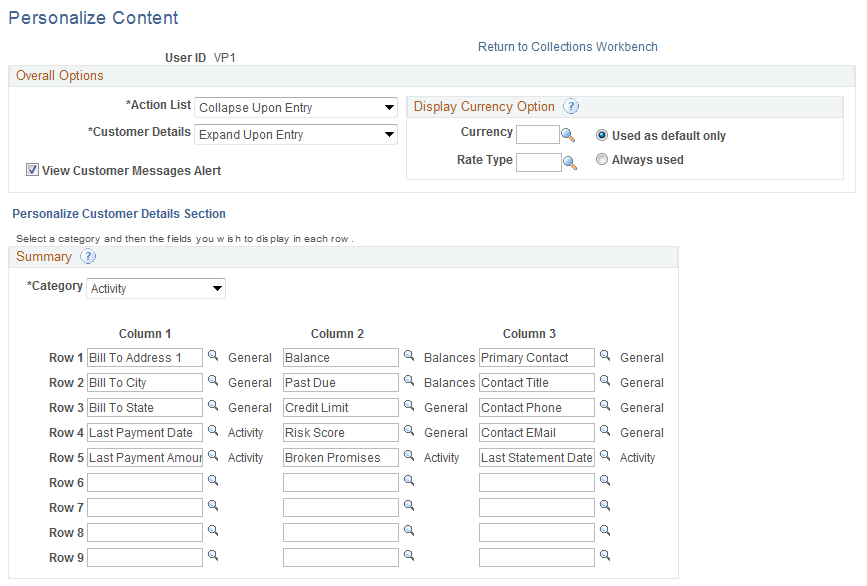
Image: Personalize Content page (2 of 2)
This example illustrates the fields and controls on the Personalize Content page (2 of 2), showing the Personalize Tabs grid. You can find definitions for the fields and controls later on this page.
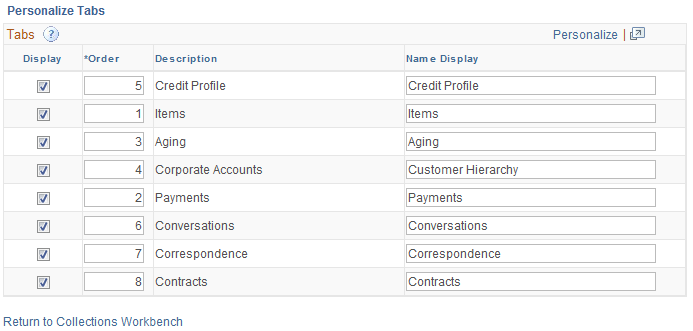
Overall Options
Display Currency Option
If the Display Currency Option fields on the Personalize Content page are empty, and the Business Unit or Customer criteria are not entered in the Collections Workbench header search, the system will not be able to populate any of the detail tabs. An error message on the detail tabs directs you to enter currency values on the Personalize Content page.
When you enter a customer but no Business Unit value in the Collections Workbench header, and then you click a Display Currency link and select the Business Unit Currency Option, the display currency is determined as follows:
If all the open items have the same base currency, this base currency will appear as the display currency.
If any of the open items have different base currencies, the system uses the Currency value that you specify on the Personalize Content page as the display currency.
Personalize Customer Details Section
Personalize Tabs
Use the Tabs grid on the Personalize Content page.
Using the Action List on the Collections Workbench
Use the Action List group box on the Collections Workbench page to view any actions assigned to you (based on your user ID) that apply to the selected customer.
Image: Action List section (General 1 tab) on the Collections Workbench page
This example illustrates the fields and controls in the Action List section (General 1 tab) on the Collections Workbench page. You can find definitions for the fields and controls later on this page.

Image: Action List section (General 2 tab) on the Collections Workbench page
This example illustrates the fields and controls in the Action List section (General 2 tab) on the Collections Workbench page. You can find definitions for the fields and controls later on this page.

Image: Action List section (General 3 tab) on the Collections Workbench page
This example illustrates the fields and controls in the Action List section (General 3 tab) on the Collections Workbench page. You can find definitions for the fields and controls later on this page.

| Reassign Action |
Select the Reassign Action link to reassign an action to another owner on the Reassign Action page (ACTION_REASSIGN). See Reassign Action Page. |
| Select Action Filter |
Click the Search icon to select an action filter from a list of one or more action filters that you previously set up using the Add Filter link. When you select an action filter, a list of actions appear in the Action List group box based on the criteria you selected and saved on the Filter Action List page (AR_ALISTFILTER_SEC). |
| Add Filter |
Select this link to access the Filter Action List page. Refer to the Adding Filters sub-section following this section. |
| General 1 |
Displays a list of any actions that have been for each customer in the list. You can click the Action link to view details about the action. You can also click the customer link to view details about this customer. See Customer Action Page. |
| General 2 |
Displays the items and their amounts affected by the action, the promise date information from the Conversations page, the customer's risk score, the action owner, the supervisor and location information. |
| General 3 |
Displays the conditions related to the action, the priority of the condition, the action parameter, the user ID assigned to the action, and the user's role. |
Search Filter Creation
Use the Filter Action List page (AR_ALISTFILTER_SEC) to add, name, and save a filter that narrows your search for action items.
Click the Add Filter link on the Collections Workbench page in the Activity List group box.
Image: Filter Action List page (1 of 2)
This example illustrates the fields and controls on the Filter Action List page (1 of 2). You can find definitions for the fields and controls later on this page.
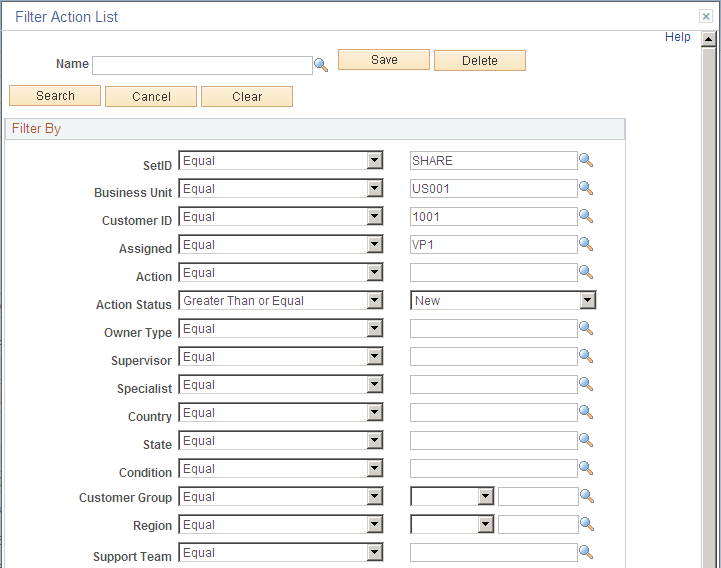
Image: Filter Action List page (2 of 2)
This example illustrates the fields and controls on the Filter Action List page (2 of 2). You can find definitions for the fields and controls later on this page.

Reviewing the Customer's Credit Profile
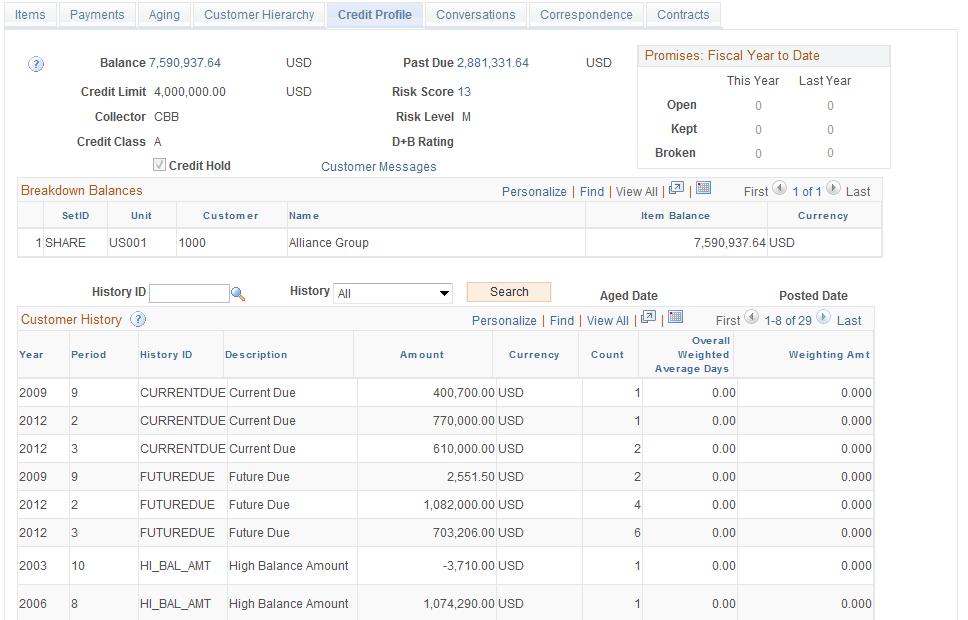
Use the Credit Profile tab (select the Credit Profile tab on the Collections Workbench) to view the current and past circumstances of the selected customer's credit.
Image: Credit Profile tab on the Collections Workbench page
This example illustrates the fields and controls on the Credit Profile tab on the Collections Workbench page. You can find definitions for the fields and controls later on this page.
Customer History
Use the Customer History grid on the Credit Profile tab of the Collections Workbench.
Reviewing Customer Payment Information
Use the Payments tab (select the Payments tab on the Collections Workbench) to view the outstanding and complete payment information for a customer and/or contract, and the payment performance for a customer.
Image: Payments tab on the Collections Workbench page (1 of 2)
This example illustrates the fields and controls on the Payments tab on the Collections Workbench page (1 of 2). You can find definitions for the fields and controls later on this page.
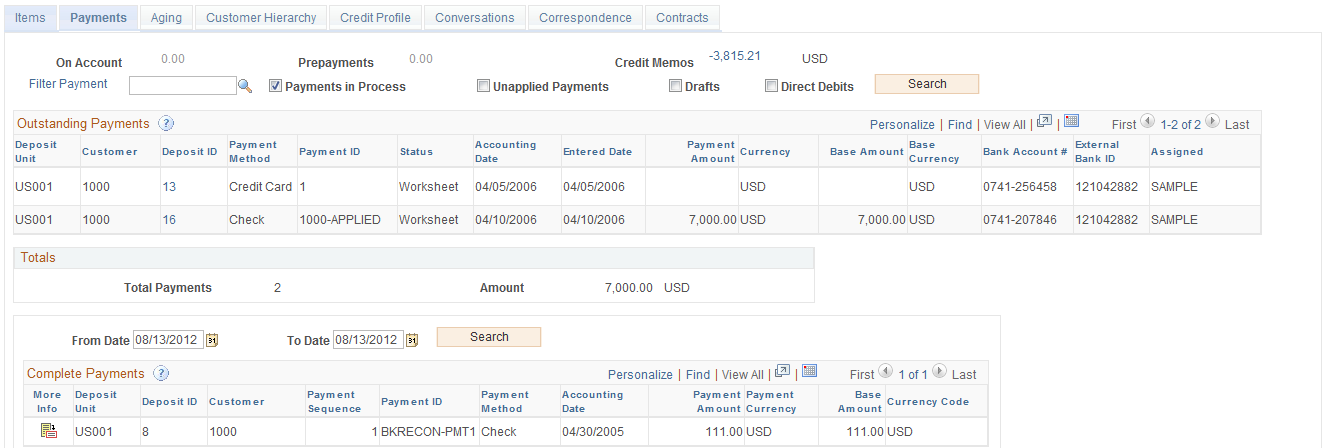
Image: Payments tab on the Collections Workbench page (2 of 2)
This example illustrates the fields and controls on the Payments tab on the Collections Workbench page (2 of 2). You can find definitions for the fields and controls later on this page.

| On Account |
Displays the total amount of payments placed on a customer's account. Click the On Account amount link to access the Items tab, which lists the individual items making up the amount. The Total Amount at the bottom of the Items tab equals the On Account amount on the Payments tab. |
| Prepayments |
Displays the total amount of prepayments made by this customer. Click the Prepayments amount link to access the Items tab, which lists the individual items making up the amount. The Total Amount at the bottom of the Items tab equals the Prepayments amount on the Payments tab. |
| Credit Memos |
Displays the total amount of credit memos issued to this customer. Click the Credit Memos amount link to access the Items tab, which lists the individual items making up the amount. The Total Amount at the bottom of the Items tab equals the Credit Memos amount on the Payments tab. |
| Filter Payment |
Click this link to access the Filter Payment page. Use this page to create filters that enable you to specify values that narrow your search for Outstanding Payments for this customer. This page works the same way as the Filter Action List page. Click the Search icon for the adjacent field to select one of the filters that you have set up. |
| Payments in Process |
Select this check box to display payments that have worksheets created and have been partially or fully applied in the Outstanding Payments grid for the selected customer. |
| Unapplied Payments |
Select this check box to include any payments that been identified but not applied in the Outstanding Payments grid for the selected customer. |
| Drafts |
Select this check box to include any drafts in the Outstanding Payments and the Complete Payments grids for the selected customer. |
| Direct Debits |
Select this check box to include any direct debit payments in the Outstanding Payments and Complete Payments grids for the selected customer. |
| Outstanding Payment Search |
Click this button to search for payments based on the filter and the check boxes you selected. |
| Outstanding Payments grid |
Displays details of the payments and the total of all of the payments displayed based on the filter and check boxes you selected after clicking the Outstanding Payment Search button. You can click the Deposit ID link to access the All Payments page (PAYMENT_STATUS) for each outstanding regular payment, the Direct Debit Control page (DD_CONTROL_DSP) for each outstanding direct debit payment, and the Draft Control page (DRAFT_CONTROL_DSP) for each outstanding draft payment. See Reviewing Direct Debit Control Information. See Draft Control Page. In both Outstanding Payments and Complete Payments, the same payment can be applied to multiple customers. In this case, the system displays **Multiple** in the Customer field. You can click the Deposit ID link to see details. |
| From Date and To Date |
Enter a date range to narrow your search for completed payments. The complete payments within the date range display in the Complete Payments grid. |
| Complete Payments grid |
Displays payment information for payments where the Receivables Update process has successfully posted the payment. After a payment has been marked Complete, you can only inquire on it. To change it, you must unpost the payment group. See Receivables Update Processing Options. In both Outstanding Payments and Complete Payments, the same payment can be applied to multiple customers. In this case, the system displays **Multiple** in the Customer field. You can click the Deposit ID link to see details. |
 |
Click this icon in the Complete Payments grid to access the Item Activity From a Payment page (ITEM_PAYMENT), which describes the effect of the payment on the payment items. |
| Payment Performance grid |
Displays the Weighted Average Days and Amount for payments within a specific fiscal year and accounting period. Also displays the Total Weighted Average Days and Basis for all payments listed for the specific fiscal year and accounting period for the selected customer. See Customer History Calculations in the Receivables Update process. See History Page. |
Researching Customer Item Information
Use the Items tab (select the Items tab on the Collections Workbench) to view an item list associated with the selected customer based on the item status.
Image: Items tab (Detail 1 fields) on the Collections Workbench page
This example illustrates the fields and controls on the Items tab (Detail 1). You can find definitions for the fields and controls later on this page.
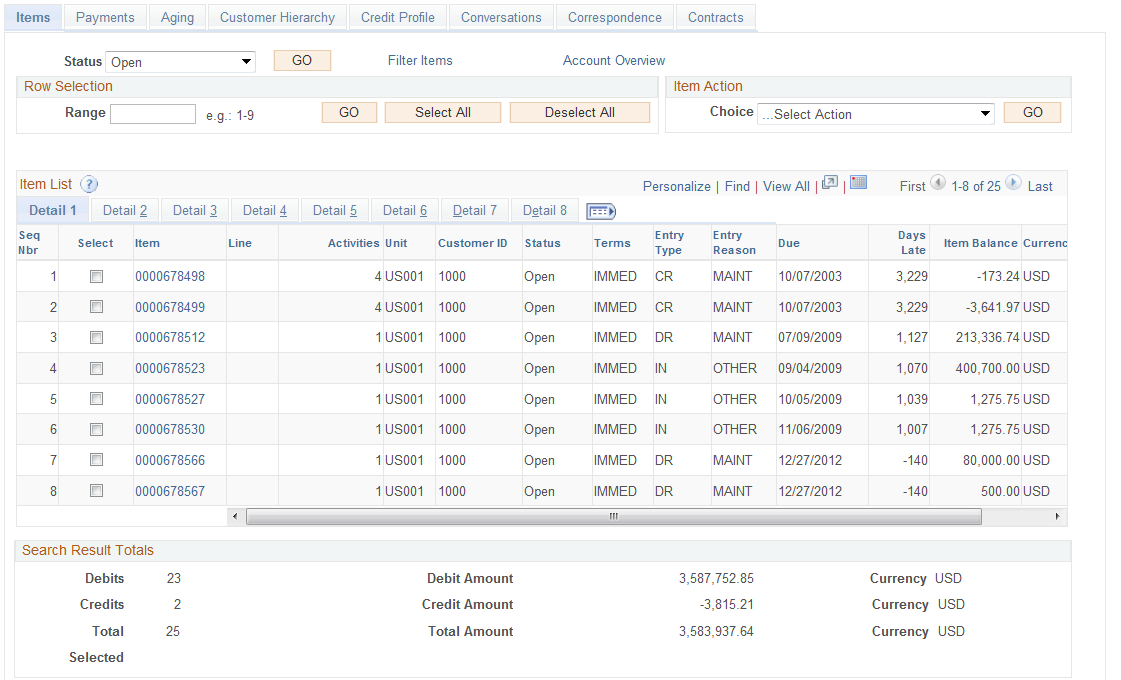
| Status |
Select the status of the items that you want to appear on the Item List grid from these options and select the Go button:
|
| Filter Items |
Click this link to access the Filter Items page (CWB_ITEMSRCH_SEC). Select the attributes that you want to use for this filter, enter the name of the new filter in the Search Preferences field on the Filter Items page and click the Save button. You set up and use this filter like you do the filters for the action list. |
| Account Overview |
Click this link to access the Account Overview – Balances page (CUST_BALANCES_HDR) for the selected customer. |
| Range |
Enter a range for the Item List rows that you want to select and click the Go button. For example, if you enter 3–5 in this field, the system will place a check mark next to rows 3, 4, and 5 in the Item List. |
| Item Action |
After selecting the rows on which you want to perform an item action, select one of the actions in the item action list. For example, if you select an item row, select the item action Create a Maintenance Worksheet, and click the Go button, the Worksheet Application page appears with the selected item in the Item List grid. See Item List Page. See Item Action Page. |
Managing Customer Conversations and Promises
Use the Conversations tab (select the Conversations tab on the Collections Workbench) to view a conversation's details related to the selected customer or contract values.
Image: Conversations tab (Detail 1 fields) on the Collections Workbench page
his example illustrates the fields and controls on the Conversations tab (Detail 1). You can find definitions for the fields and controls later on this page.
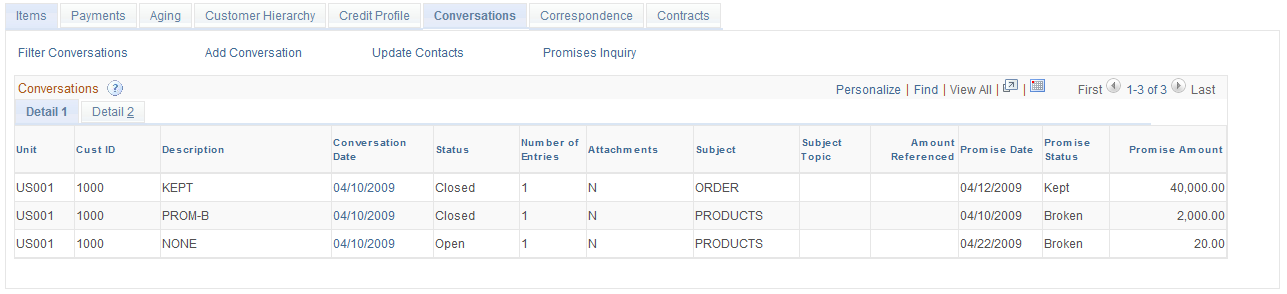
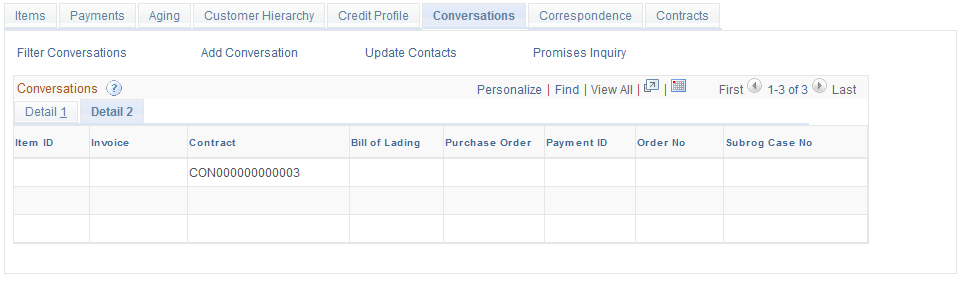
Image: Conversations tab (Detail 2 fields) on the Collections Workbench page
This example illustrates the fields and controls on the Conversations tab (Detail 2). You can find definitions for the fields and controls later on this page.
| Filter Conversations |
Click this link to access the Filter Conversations page (CWB_CONVFILTER_SEC), where you can select or enter attributes to narrow your search for conversations associated with the selected customer and display them in the Conversations grid on the Conversations tab of the Collections Workbench. |
| Add Conversation |
Click this link to access the Conversations page (CONVER_DATA1_SS), where you can add a new conversation. The SetID, Business Unit, and Customer ID fields are populated based on the selected customer. You can add new conversation entries by clicking the Add Conversation Entry button on the Conversation page. See Conversations Page. |
| Update Contacts |
Click this link to access the Customer Contacts page (CWB_CUSTCONT_SEC), which lists the name of each contact associated with the selected customer. You can perform these activities from this page:
|
| Conversations grid |
The conversations associated with the selected customer based on your search criteria are listed on this grid. You can click on the link associated with a Conversation Date to access the Conversations page of the Conversations component, where you can review and update the details about the conversation associated with the selected Conversation Date. |
Promise Date Inquiry
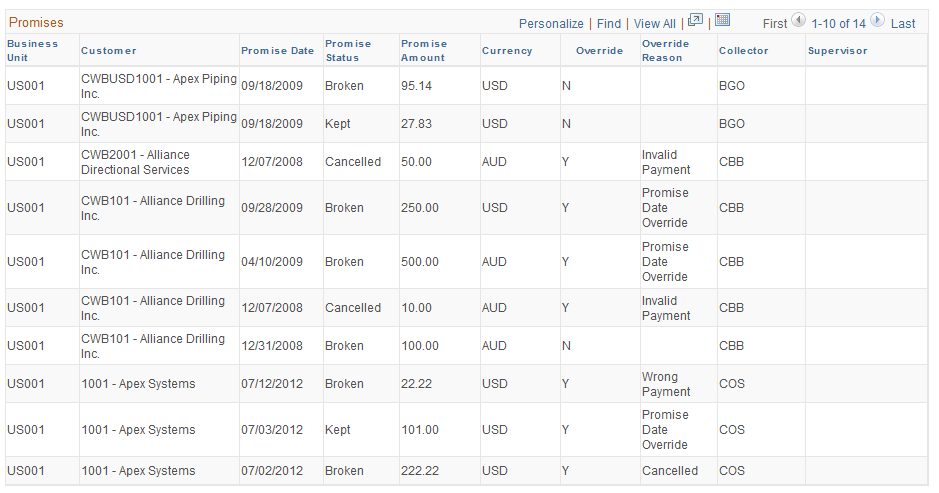
Use the Promise Date Inquiry page (CWB_PROMISEINQ) to search for and display promises associated with a selected customer.
Image: Promise Date Inquiry page (1 of 2)
This example illustrates the fields and controls on the Promise Date Inquiry page (1 of 2). You can find definitions for the fields and controls later on this page.
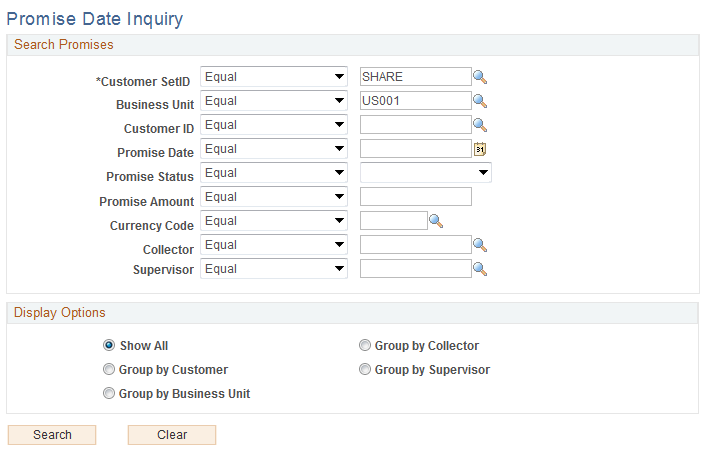
Image: Promise Date Inquiry (2 of 2)
This example illustrates the fields and controls on the Promise Date Inquiry (2 of 2). You can find definitions for the fields and controls later on this page.
Reviewing Customer Correspondence
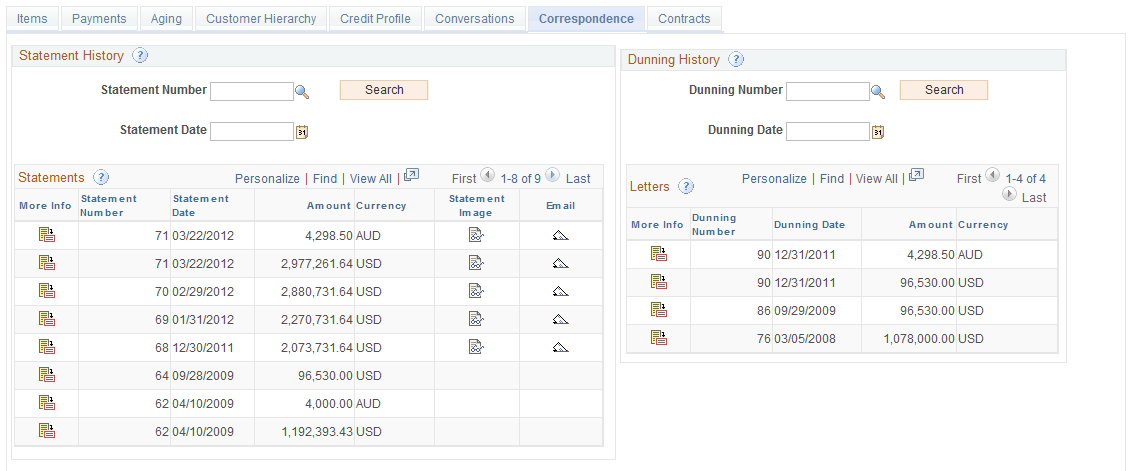
Use the Correspondence tab (select the Correspondence tab on the Collections Workbench) to review correspondence history, including any statements or dunning letters associated with this customer.
Image: Correspondence tab on the Collections Workbench page
This example illustrates the fields and controls on the Correspondence tab on the Collections Workbench page. You can find definitions for the fields and controls later on this page.
Statement History
Dunning History
Sending Customer Statements From the Collections Workbench
Use the Send Statement page (AR_SND_STMT_SEC) to send an e-mail message that includes the statement as an attachment.
Click the Email icon in the Statements grid on the Correspondence tab of the Collections Workbench.
Image: Collections Workbench – Send Statement page
This example illustrates the fields and controls on the Collections Workbench – Send Statement page.
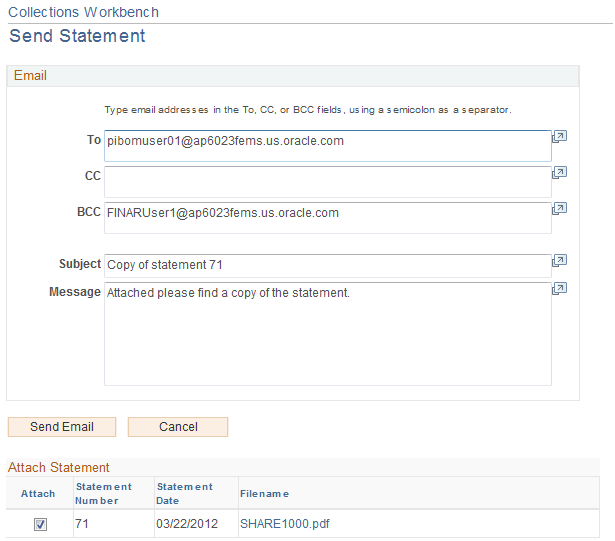
The default value for the recipient (To field) is the e-mail address of the primary contact for the customer, and your e-mail address appears by default in the BCC field. You can edit these and the other Email field values as required for your business processes and record keeping.
You can view the statement before sending the e-mail by clicking the statement filename link. The Attach check box must be selected for the statement to be delivered with the e-mail message.
Reviewing Customer Aging
Use the Aging tab (select the Aging tab on the Collections Workbench) to view the current and past due balances, the high balance and high past due balance, and the balance and past due balance dates for the selected customer, as well as balances for any customer in the customer hierarchy.
Image: Aging tab on the Collections Workbench page
This example illustrates the fields and controls on the Aging tab on the Collections Workbench page. You can find definitions for the fields and controls later on this page.
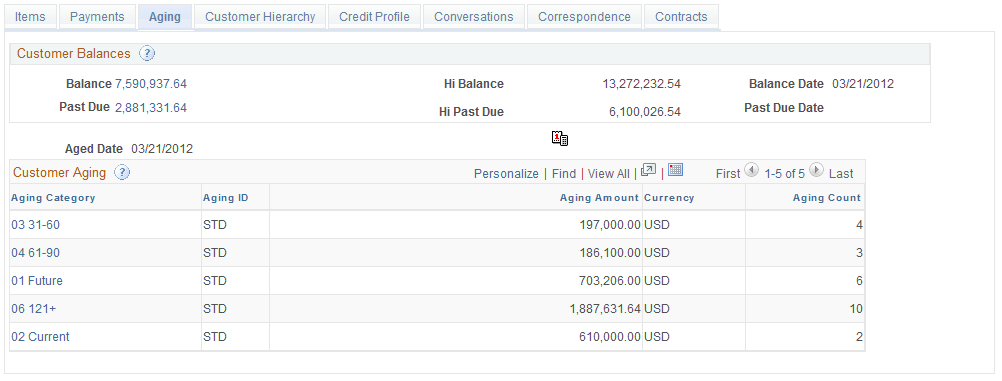
The fields in the Customer Balances region appear only when you enter a Customer value in the Collections Workbench header.

See Setting Up Aging.
Customer Aging Grid
This grid is updated after the aging process has been run for the selected customer or contract payments. Values appear in the Aging Category, Aging ID, Aging Amount, Currency, and Aging Count fields.
Click the link associated with an Aging Category to display the Items tab of the Collections Workbench, which lists the items and amounts included in the selected Aging Category. If you have included any contracts search criteria, the system will select items based on those criteria and display the items in the Items tab.
Reviewing the Customer Hierarchy
Use the Customer Hierarchy tab (select the Customer Hierarchy tab on the Collections Workbench) to view customer hierarchy information for the customer relationship level (Corporate, Correspondence, Remit From, or No Relationship) selected in the header search.
Image: Customer Hierarchy tab on the Collections Workbench page
This example illustrates the fields and controls on the Customer Hierarchy tab. You can find definitions for the fields and controls later on this page.
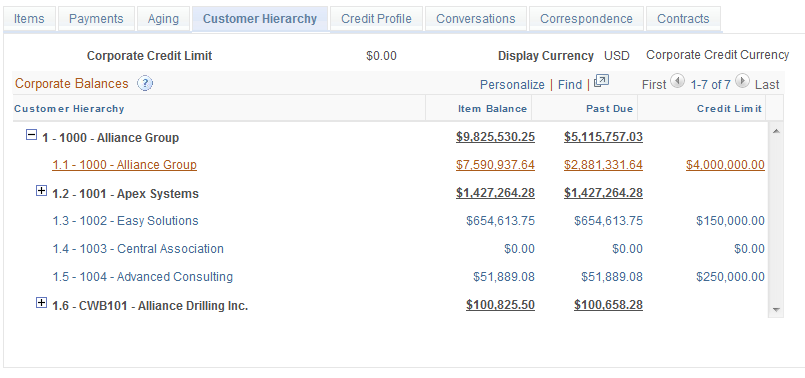
See Corporate Customers.
Reviewing Contracts Information
Use the Contracts tab (select the Contracts tab on the Collections Workbench) to view balances by contract and contract line, and you can select and review items by contract and contract line.
Image: Contracts tab (Detail 1 fields) on the Collections Workbench page
This example illustrates the fields and controls on the Contracts tab (Detail 1). You can find definitions for the fields and controls later on this page.
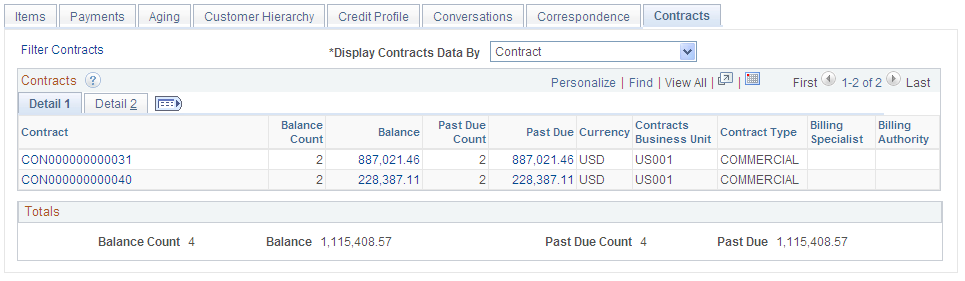
Image: Contracts tab (Detail 2 fields) on the Collections Workbench page
This example illustrates the fields and controls on the Contracts tab (Detail 2). You can find definitions for the fields and controls later on this page.

Contracts Details Grid and Totals
The Contract grid shows the balance and past due by contract or contract lines. It also shows some contract details for the contract or contract line. The Totals group box displays the balance and past due total counts and amounts.