Exploring the Dashboard
You initially log in to the Horizon dashboard as the user admin, which opens the project demo's landing page. Because admin has administrative privileges on demo, the page displays 3 tabs on the left panel: Project, Admin, and Identity. Without administrative privileges, a user would only see the Project and Identity tabs.
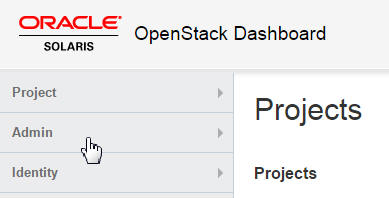
Note - The user name admin is independent of its role. For example, admin has administrative privileges on demo. If you add admin as a user to a new project, the administrative privileges do not transfer to that project. Instead, admin would only have member privileges and the Admin tab would be inaccessible.
The Usage Summary Overview page from the Admin panel is the default cloud administrator view.
Figure 1 OpenStack Dashboard Admin Overview Window
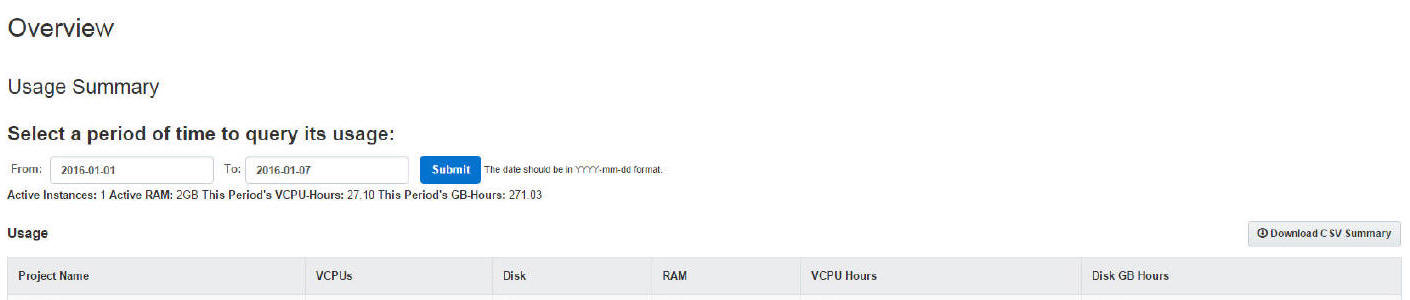
The selections on the Admin panel provide the following functionality:
-
An overall view of the Nova instances and Cinder volumes in use within the cloud
-
The ability to view and edit the flavor definitions that define VM instance characteristics such as the following:
-
The number of virtual CPUs
-
The amount of memory
-
The disk space assigned
-
The brand of the underlying Oracle Solaris zone: solaris for non-global zones and solaris-kz for kernel zones
-
-
The ability to create virtual networks and routers for use by cloud administrators
-
The ability to view and edit projects by grouping and isolating ownership of virtual computing resources
-
The ability to view and edit users, which are the persons or services that use the cloud resources
The OpenStack UA for the single-node configuration provides you with the following preconfigured resources:
-
Two images: Solaris Non-global Zone and Solaris Kernel Zone
-
Two projects or tenants: demo and service
The demo tenant is the default tenant with admin as its single member.
The service tenant is used by the cloud administrator to create resources that will be shared across multiple tenants. For example, in the document, the Neutron router is created in the service tenant so that the router is shared by all the tenants. Do not use the service tenant for any other purpose in your OpenStack setup. OpenStack services communicate with each other by means of service-specific users, who all have the administrative privileges in the service tenant.
-
Ten flavors
To view the preconfigured images in the repository that were included in the OpenStack Unified Archive, click either one of the following tabs:
-
Admin > System > Images tab.
-
Project > Compute > Images tab.
To list the Oracle Solaris flavors the are automatically available, click the Admin > System > Flavors tab.
The following video presentations provide a complete overview of the dashboard:
For information about tasks you can perform on the dashboard, see Managing the Cloud.