Similar Cases
Support teams often encounter questions or problems that have already been solved in the past. Locating those earlier cases can be time-consuming and may lead to repeating work or providing inconsistent responses. The Similar Cases feature makes it easier for support reps and managers to quickly find related, previously resolved cases, improving efficiency and helping teams provide faster, more accurate answers.
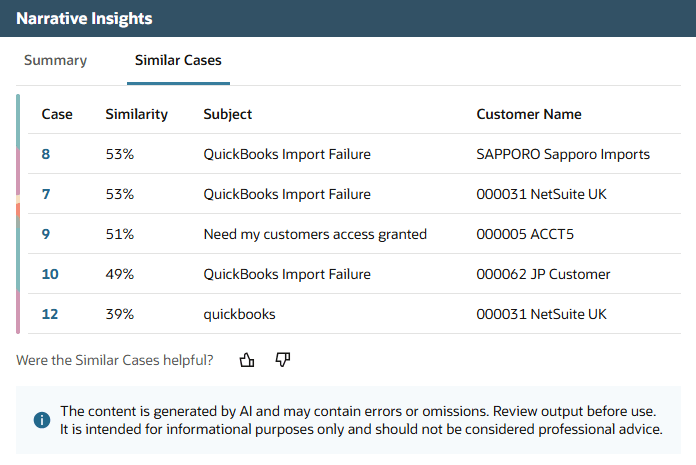
The Similar Cases feature uses artificial intelligence (AI) to compare details from the current support case to past cases in the system. It then displays up to five of the most relevant closed cases in a dedicated tab when summarizing a support case. Each result shows the case number, case subject, customer name, and a similarity score, helping you review solutions that worked before. You can click on the case number to open the case record of any similar case you want to review in more detail.
Each time a case is closed, NetSuite automatically adds it to the index of eligible closed cases and makes it available for similarity comparison.
Only cases closed after 7th October 2026 are included in the index.
If you add many closed cases at the same time, such as during an import, indexing can take a few hours. The indexing time depends on the number of cases. When indexing is complete, the eligible closed cases can appear in the list of similar cases on the Similar Cases tab.
By default, the feature considers up to 10,000 of the most recent closed cases. Open cases are not included in the similarity search.
The key benefits of this feature are:
-
Saves Time- Support reps can quickly find earlier cases with similar issues, eliminating manual searches.
-
Consistency- By referring to previous resolutions, support reps can provide more reliable, consistent information.
-
Knowledge Sharing- Teams can use solutions and information from past cases even if the original case owner isn't available.
The generative AI model uses the following case details for comparison: the subject, first message, item, type, and issue details.
The data never leaves Oracle infrastructure and is not used for AI model training or for any purpose other than case similarity evaluation.
Enabling Similar Cases
To use Similar Cases, your account must have the Customer Relationship Management feature enabled. To enable this feature, a user with the Administrator role should go to Setup > Company > Enable Features. On the CRM subtab, check the Customer Relationship Management box.
In addition, the Enable Narrative Insights preference must be enabled on the Narrative Insights tab of the AI Preferences page. This preference is enabled by default. For more information about this preference, see Managing Narrative Insights Preferences.
To access Similar Cases, you must have View permission for support cases.
Viewing Similar Cases
To view similar cases, do the following:
-
Go to Lists > Support > Cases.
-
Click View next to the name of the case for which you want to generate a summary.
-
On the case record, click Generate Insight.
-
Click the Similar Cases tab in the popup window.
-
Review the list of similar cases:
-
Case Number: Click this link to open the related case in a new tab.
-
Similarity: This percentage shows how closely each case matches your current case. Higher similarity scores mean the recommended case is more likely to help you resolve your current issue.
-
Subject: Displays the subject line of each similar case.
-
(Optional) At the bottom of the Similar Cases tab, click thumbs up if the suggested cases were helpful or thumbs down if not. This feedback helps improve future recommendations for your team.
-
The similarity score of similar cases is generated by AI which can make mistakes, so check the list before use. It should not be considered professional advice.