Creating a Package
Introduction
The Package configuration helps in assembling the Documents that need to be generated for communicating with your customer. The Package creation uses Assembly Template to map the source transactional data through the fields, determining how these elements are assembled into the final output such as, Email, PDF or CSV formats. The fields are mapped in the Content through the Communication Cloud Service's customized tags, allowing for a real-time preview or generation of how the personalized communication will appear for each customer, ensuring that all data is correctly populated, formatted and styled for distribution.
Prerequisites
Following are the prerequisites to consider before creating a Package in Communication Cloud Service.
Note:
Ensure that you complete the prerequisite before proceeding.| Prerequisites | Details |
|---|---|
| Set the Config ID | Config ID must be Active.
Ensure that all dependent configurations and associations are part of the same open Config ID. See Creating Config ID. |
| Configure Entitlements | Ensure that you have the required entitlements to create a Package.
|
| Create Marketing Company configuration | Ensure that you have created the Marketing Company configuration that needs to be associated to the Package configuration. |
| Create Document configuration | Ensure that you have created the Document configurations that need to be associated to the version configuration. |
Before you start creating a Package, identify the Package requirements to determine what is required for the creation, structure, and content of the communication to be generated and delivered to the customers. This process includes specifying the content to be personalized, defining the required layout for document organization, and determining the document structure and branding elements. Additionally, every Package Version includes an Assembly Template which holds the mapping between the JSON source to the corresponding placeholders in the Content.
Components Involved in Package Creation
The Package consists of the several components to ensure effective and efficient creation and delivery of customized dynamic communications. These components help you to deliver personalized, well-structured communications across multiple channels. Components such as, Documents, Layouts, or Content can be reused across various parts of the configuration. A Content version can be reused across different layouts. These layouts can be reused across different documents and these documents can be reused across various packages.
- Assembly Template and Data Mapping
Assembly Template is a JSON configuration that defines the mapping logic between the Communication Cloud Service configuration and the data source. The template maps fields with incoming JSON data that can be further used in the Content configuration, enabling customized communication generation based on data. It determines how data is populated and what conditions must be met for specific Content, Layout, or Document to be included. This data mapping process ensures that the correct information, that is captured from the source, is pulled into the communication, based on predefined conditions. See Assembly Template Reference for more details.
Assembly Template also utilizes Conditions and Iterations to control the inclusion and repetition of elements based on the data. Conditions in the Assembly Template determine whether specific components (for example, Documents, Layouts, Contents) will be included in the final output based on the data. Iterations control how often a Document, Layout, or Content is repeated in the output, depending on how many times a certain piece of data occurs. See Examples of Assembly Template and Schema Reference Table for more details.
- Content Configuration
In Communication Cloud Service configuration, Content can be text, images, or variable data, that are included in a communication. This Content might include fields, such as customer names or transaction details, and will be replaced with actual values when the communication is generated. Additionally, the presentation of the content can be customized using Styles. The Style defines how the content of the communication is presented according to the configuration. See Content Configuration for more details.
- Layout Configuration
The Layout configuration helps in positioning of content elements in a communication. It determines the arrangement of elements such as tables, grids, blocks, or lists, ensuring that Content is displayed in an organized manner. The Layout is associated to specific Document, providing control over how the Content can be positioned in producing communication output. For example, in a Grid type Layout, you can include nested Layouts, which help structuring the Content side by side or in any desired structure.
See Configuring a Layout for more details. - Style Configuration
Configuring Styles define the visual appearance and the design consistency of the documents included in the Package. It ensures that the documents in the Package is aligned with the organization’s branding, by setting styles such as fonts, colors, background and so on. See Configuring Styles for more details.
- Document Configuration
Configuring Documents within a Package requires defining the templates used to generate final communication sent to customers. This involves specifying the structure through layouts and its information through content, and formatting through styles to ensure clarity, accuracy, and adherence to established organizational standards. See Configuring a Document for more details.
The appropriate Email communication is considered according to the Conditions specified in the Package.
For example, you can use the Conditions in Package to send Email to the customer based on the transactions occurred with the loan accounts. A Welcome Email is sent when a customer opens a new loan account, while a Closure Email is sent when a customer pays off a loan.
Additionally, if a customer has taken multiple loans with the bank, and requires monthly statements for each loan. The details are stored in a structured data format. You can utilize iteration function to generate statements related information, using the same template that includes fields for dynamic data. The system then populates the fields with the specific data from the current loan account iteration, such as loan balance, interest accrued, next payment due date, and so on. The system then combines both the statement information into a single PDF that can be attached to the Email, or can be part of the Email itself. This Email is then sent to the customers.
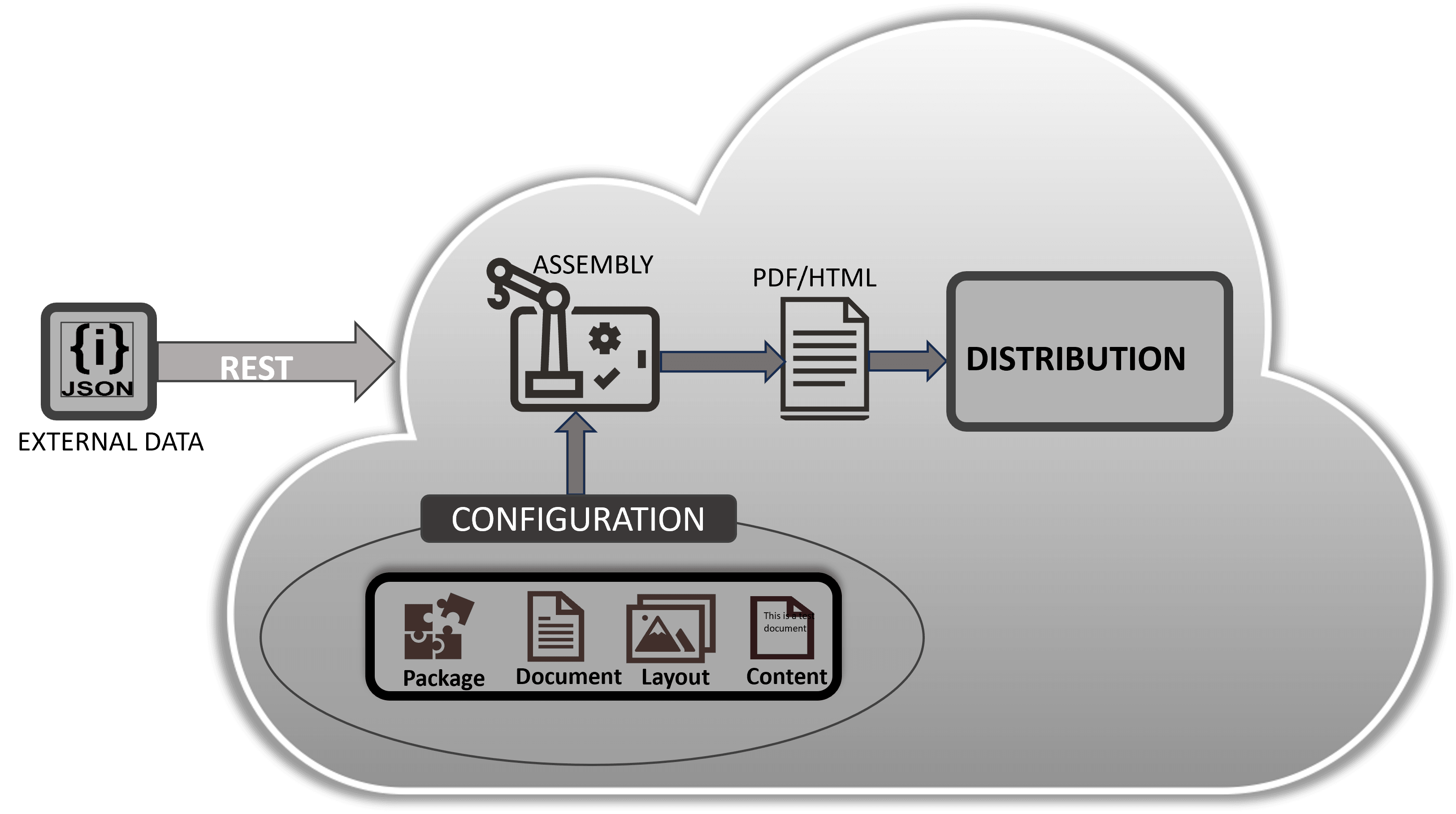
The following image illustrates how the assembling configuration uses JSON to generate communication output.
Creating a Package
A Package provides the flexibility to produce customized communication. Creating Package configuration consists of creating the base configuration and defining the versions with the Assembly Template within it. A Package can have multiple versions. Multiple versions within a Package configuration facilitate efficient management of documents at different time period. You need to associate Documents to a Package Version configuration.
Creating a Package in Communication Cloud Service includes the following:
Creating a Package
Package supports variations according to the different active dates. It groups the multiple versions that is required to combine data for generating communication output.
- Access the Oracle Financial Services Cloud application.
- From Menu, select Communication and then select Package.
- On the Communication Package landing page, select Create.
- In Basic Information section, enter the Name, Long Name and Description (optional), to identify the Package.
- In Brand section, select Add Marketing Company and then select the Marketing Company that you want to add to the Package.
- In Status section, under Active Date, the date is set to the current date when the Package is created. You can either leave it blank or modify it to a future date. Once you add a date and save the configuration, you cannot leave it blank later.
- Select Save to save the details, or Continue to save and provide the version details of the Package.
Creating a Package Version
- In Basic Information section, enter the Name and Description (optional), to identify the version.
- In Output Title section, enter the title for the assembly generated communication outputs such as, PDF or HTML file. This is optional. If you have not provided the Output Title, the Package Name is considered as the Output Title.
- In Output Languages section, from the drop-down, select the preferred language for the assembly generated communication outputs such as, PDF or HTML file. This is optional. The default output language is English. Specifying the output language helps to accurately interpret and present the content, improving accessibility and usability.
- In Assembly Template section, enter the data available in JSON. Enter {} in the Assembly Template if you do not require any data, conditions or iterations. See Assembly Template Reference for more details.
- In Status section, under Active Date, the date is set to the current date when the Package Version is created. You can either leave it blank or modify it to a future date. Once you add a date and save the configuration, you cannot leave it blank later. This helps in identifying the appropriate version for communication generation.
- Select Save to save the details, or Save & Exit to save and return to the landing page.
Associating Documents
To ensure that all documents within the Package maintain consistent Layout, Style, and Content, you need to associate Documents to the Package Version configuration.
- In Update Communication Package Version page, under Associations, select Add.
- Select the Document that you want to associate. You can select multiple Documents.
- In Document Attributes page, select Edit icon to set the Document Always Triggered to either True or False. This determines whether the document needs to be always included in the communication output. If there is a condition to be defined in the Assembly Template, then you need to set Document Always Triggered to False.
- After editing, select check mark to save the changes or cross mark to discard the changes.
- If you have multiple Documents, you can arrange the order at which the document needs to be generated. By default, the Documents are arranged based on the order of the associated Documents. If you want to change the order, select the Document you want to move. When the Document is selected, drag it to your desired position.
- Select Done to return to Update Communication Package Version page.
- Select Save to save the association.
Video Tutorial
Package Creation & Assembly in Communication Cloud Service video:
This video offers step-by-step guidance on building and managing packages, including assembling layouts, content, and templates to produce communication outputs. Learn best practices for organizing communication components and streamlining the creation of effective and reusable packages for seamless customer communication.