Normative Comparisons
Normative Comparison modules compare a customer's energy usage to their own past usage or to that of similar homes. These modules are designed to help customers understand how their usage compares and motivate them to reduce energy consumption. Types of normative comparisons include:
- Three-Bar Neighbor Comparison: Compares the customer ("You") to two groups: "Similar Homes" and "Efficient Homes." The results are displayed in a horizontal bar chart to show how the customer's usage stacks up against others.
- Efficiency Zone: Displays the customer's usage alongside similar homes within a bar graph, highlighting a green "efficiency zone." If the customer's usage falls within or below this zone (to the left of the threshold line), they are considered efficient. The threshold represents the average usage of the top 20% most efficient similar homes for that billing period and updates with each report.
- Seasonal Normative Comparison: Compares the customer's heating or cooling energy use from a previous season to that of similar homes.
- Peak-Focused Normative Comparison: Provides total electricity usage alongside peak usage to help customers better understand how their peak consumption compares to their overall energy use.
Note:
Utilities have the option of including either the Efficiency Zone or the Three-bar Neighbor Comparison module in some report experiences. It is recommended that utilities with a savings focus include a Three-Bar Neighbor Comparison in their report experience.The design of the modules varies by the customer's report type and program design. Go to the individual module page to learn about the details of each module experience.
Three-Bar Neighbor Comparison
The Three-Bar Neighbor Comparison is designed to motivate customers to save energy by showing how their usage compares to others. It compares the customer ("You") to two groups, "Similar Homes" and "Efficient Homes," and displays the results in a horizontal bar graph. A brief message highlights how the customer's usage compares to efficient homes in their area. An informational section below the graph explains that "Efficient Homes" represent the top 20% most efficient similar homes in the customer's comparison group for that billing period, along with details on how to read the chart. An insight statement beneath the module indicates the customer's performance category, such as "Good," "Great," or "Using More Than Average."
The neighbor comparison in Digital Self Service – Energy Management mirrors the customer's report experience. For example, customers who see the Efficiency Zone in their report will also see the Efficiency Zone in Digital Self Service – Energy Management. For more information about the web version of the neighbor comparison, see Digital Self Service Energy Management Neighbor Comparison.
Appears in: Progress Report, Welcome Report, Limited Income Report, Annual Report, Time of Use Report, Solar Report, Electric Vehicle Report
Requirements
Utility Requirements
| Category | Description |
|---|---|
| Required Cloud Service | Energy Efficiency Cloud Service |
| Scale | Maximum of 300,000 a week. |
Customer Requirements
| Category | Description |
|---|---|
| Billing Frequency | Monthly, bi-monthly, quarterly. |
| Data Delivery Frequency | Monthly and bi-monthly. |
| Data Requirements | Billing data and third-party data. |
| Data History | A minimum of one historical bill. |
| Data Coverage | Not applicable. |
| Supported Fuels | Electric, gas, and dual fuel. |
User Experience
This section describes the user experience for the Three-bar Neighbor Comparison Module. The module varies by report type, service type, and other factors. See the User Experience Variations for additional information about the variations.
Progress Three-Bar Neighbor Comparison Graph
This image is an example of the Three-bar Neighbor Comparison module, which is a part of most standard report types.
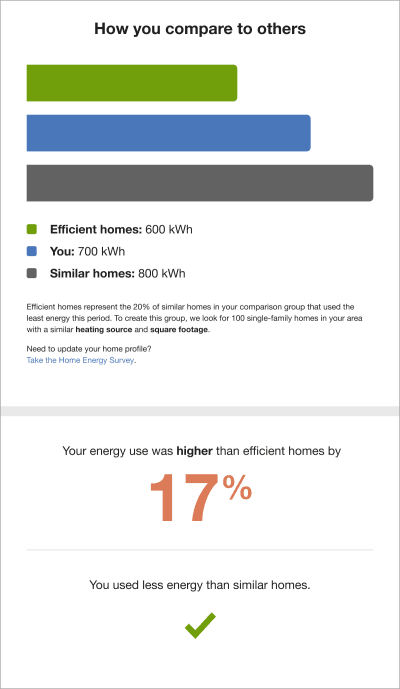
Heading: Informs the customer that the Three-Bar Neighbor Comparison shows how their energy use compares to similar homes.
Bar Chart: Displays the energy usage for each group in the comparison, typically ordered from lowest to highest.
- You: Represents the customer's energy use, usually shown in a color aligned with the utility's brand.
- Similar Homes: Shows the average energy use of comparable households, typically displayed in a neutral color such as gray.
- Efficient Homes: Represents the usage threshold for the most efficient 20% of similar homes. This is typically shown in green, a color commonly associated with energy efficiency. The value reflects the 20th percentile of similar homes, rather than an average, and is used to define the efficiency benchmark.
Legend: Appears below the graph and identifies which elements represent the customer's usage, efficient homes, and similar homes.
Explainer Text: Describes the data used in the comparison and provides guidance on how customers can update or refine this information through the Home Energy Analysis..
- Great: Less than or equal to Efficient Homes.
- Great: Close to Efficient Homes.
- Good: About the same as Similar Homes.
- Good: Lower than Similar Homes.
- Fair: More than Similar Homes.
Top Insight: Highlights the percentage difference between the customer's usage and efficient homes. For example, "29% more electricity than efficient homes". The percentage color reflects performance: green for "Good" or "Great," and orange for "Fair." By default, the percentage is capped at 100%; if exceeded, alternative messaging is used to maintain meaningful insights. See the User Experience Variations for more information.
Bottom Insight: Explains how the customer's usage compares to all neighbors (including efficient homes), aligning with the performance categories of Great, Good, and Fair.
Note:
Occasionally, the customer's previous bills do not coincide exactly in time with the previous bills of the customer's efficient homes. In order to arrive at the similar homes averages, it is necessary to align the similar homes energy use amounts with the customer's energy use amounts. In these scenarios, the application pro-rates, or "time-shifts," the similar homes bills to align with the customer bills by determining and adjusting for the amount of overlap. The time-shifted neighbor bills are then used to determine the neighbor averages.Solar Three-bar Neighbor Comparison
The Three-bar Neighbor Comparison for the Solar Report accommodates net zero and excess generation (negative) reads. The graph may vary based on factors such as the customer's benchmark status, fuel type, terminology used for neighbors and similar homes, and whether the customer has positive, negative, or net-zero energy usage.
This image is an example of the Three-bar Neighbor Comparison module included in the Solar Report.
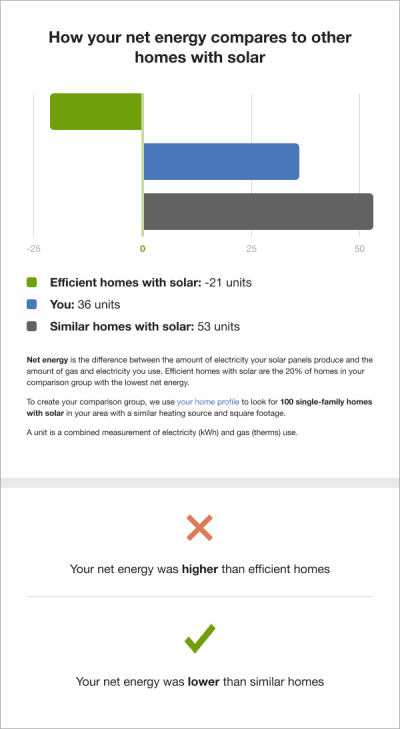
The module in the Solar Report differs from the Progress Report in the following ways:
Bar Chart:The bar chart shows a customer's net energy usage compared to other homes with solar. The comparison groups follow the same logic as the standard experience but are limited to homes with solar. To help orient the customer, the graph includes three increment indicators and a net-zero marker, with one increment indicator appearing before the net-zero point.
Bar Graph Categories:
- Efficient Homes with Solar: Represents the usage threshold for the most efficient 20% of similar homes with solar.
- Similar Homes with Solar: Shows the average energy use of comparable homes with solar.
- You: Indicates the customer's energy use.
- Graph Comparison State: States are determined by whether the customer has positive, negative, or net zero energy use.
- Positive Comparison State: In a positive comparison state, all graph bars show positive readings, meaning that the customers used more energy than their panels produced.
- Straddle Comparison State: In the straddle comparison state, the graph shows a mix of positive and negative reads. The module varies based on fuel type, language type, and whether the customer's "You" bar is positive or negative.
- Negative Comparison State: If the customers used less energy than their panels produced, all graph bars show negative readings. The module varies depending on the customer's benchmark state and fuel type.
- Legend: Indicates what portions of the graph indicate the customer's home energy use , efficient homes with solar, and similar homes with solar.
- Explainer Text: The solar Three-bar Neighbor Comparison module includes definitions of net energy, comparison groups, and fuel used in the insights.
- Top Insight: The top insight is a large, color-coded percentage that shows the customer's usage relative to similar homes. By default, the percentage is capped at 100%. If this threshold is exceeded, alternative messaging is used to ensure the insight remains meaningful and impactful. See the User Experience Variations for more information.
- Bottom Insight: If the customer uses more energy than their solar panels produced, the secondary insight will display a gray exclamation point.
Electric Vehicle Three-Bar Neighbor Comparison
The Three-Bar Neighbor Comparison for Electric Vehicle Reports is tailored to highlight the impact of electric vehicle charging on overall home energy use. The graph may vary based on factors such as benchmark status, fuel type, and whether "similar homes" or "neighbors" terminology is used.
This image is an example of the Three-Bar Neighbor Comparison module included in the Electric Vehicle Report.
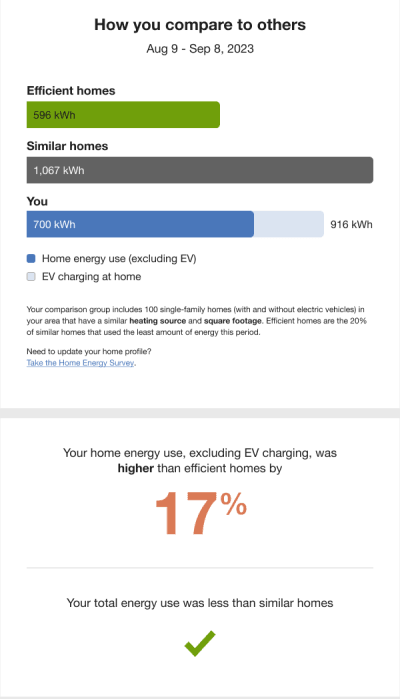
Heading: Indicates that the customer's energy use is being compared to other homes.
Billing period: Displays the dates covered by the report.
Bar chart: Shows the customer's energy use compared to other single-family homes, which may or may not include electric vehicles. The comparison follows the standard methodology but incorporates the impact of electric vehicle charging. The chart includes the following categories:
- Efficient Homes: Represents the usage threshold for the most efficient 20% of similar homes.
- Similar Homes: Shows the average energy use of comparable households.
- You: Highlights the customer's energy use in relation to the comparison groups. It reflects total home energy use and electric vehicle charging, while also distinguishing usage excluding EV charging.
Comparison State: The chart presentation varies based on the customer's performance:
- Fair: Home energy use (excluding EV charging) is higher than efficient homes and similar homes.
- Good: Home energy use (excluding EV charging) is lower than similar homes but higher than efficient homes.
- Great: Total energy use (excluding EV charging) is lower than efficient homes.
- Near: Usage is within approximately ±5% of efficient homes or similar homes.
Legend: Appears below the chart and identifies which portions represent home energy use excluding EV charging and energy used for EV charging.
Explainer Text: Describes the comparison group and defines efficient homes. The content varies based on available customer data, such as square footage, heating source, home type, and fuel type.
Top Insight: Displays a color-coded percentage showing how the customer's usage compares to efficient homes. The color reflects performance (Great, Good, or Fair). By default, the percentage is capped at 100%; if exceeded, alternative messaging is used to ensure the insight remains clear and meaningful. See the User Experience Variations for more information.
Bottom Insight: The second insight tells the customer how their usage compared to compared to all neighbors, including efficient neighbors.
Usage Lookback Three-Bar Neighbor Comparison
The Usage Lookback Report helps gas-only customers understand their energy use during the previous heating season. This image shows an example of the Three-Bar Neighbor Comparison module as it appears in the report.
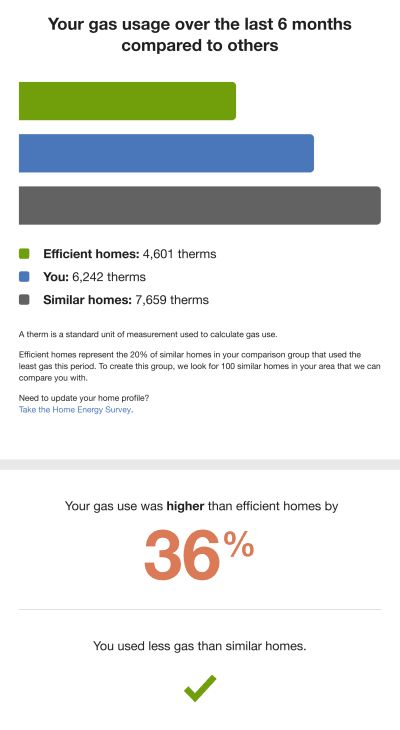
The Three-Bar Normative Comparison module in the Usage Lookback Report differs from the Progress Report in the following ways:
- Heading: Specifies the time period covered by the chart, often including the full duration or the starting month.
- Bar Chart:Displays energy usage over a longer timeframe, rather than the typical monthly or bi-monthly period shown in a Progress Report..
User Experience Variations
The user experience of the feature may vary for customers and utilities depending on their service types (gas, electricity, dual fuel, and so on), available data, costs, locale, and other factors.
Gas-Only and Dual Fuel
Gas-only and dual-fuel customers see different energy units in the Three-Bar Neighbor Comparison module. For gas-only customers, electricity units (kWh) are replaced with therms, while dual-fuel customers see usage displayed in "units."
Seasonal Report
The Seasonal Report includes the Seasonal Normative Comparison by default, instead of the three-bar Neighbor Comparison. The Three-bar Neighbor Comparison may be used in place of the default module. See the Seasonal Normative Comparison for more information.
Annual Report
The annual version of the module differs from the Three-Bar Neighbor Comparison in the following ways:
- Heading: Specifies the months for which the chart covers.
- Bar Chart: Displays how much energy each group in the comparison used during the months included in the Annual Report.
Seasonal Lookback Report
The seasonal lookback version of the Three-Bar Neighbor Comparison module differs from the in the following ways:
- Heading: Copy includes the count of months for the date range that is configured, or the start month for the date range that is configured.
- Bar Chart: Displays how much energy each group in the comparison used during the months included in the report. Therms are used as the unit of measurement for gas customers.
Insight Statements
The insight statements provide the customer with a summary of their energy use compared to efficient homes or average neighbors. The insight statements can vary depending on the report type, benchmark state, fuel type, and percentage insight threshold. By default, the percentage insight threshold for the top insight is >100%. When the threshold is exceeded, alternative insight statements are used to ensure that the insights have a material impact on the user.
The following table provides an example of how the insight statement can vary for an electric-only or dual-fuel customer in a "Good" benchmark state.
| Comparison Language | Insight Type | Example Insight |
|---|---|---|
| Similar Homes | Standard |
Top Insight Your energy use was higher than efficient homes by 48% Bottom Insight You used less energy than similar homes |
| Similar Homes | Alternative |
Top Insight Your energy use was higher than efficient homes Bottom Insight You used less energy than similar homes |
| Neighbors | Standard |
Top Insight Your energy use was higher than efficient neighbors by 48% Bottom Insight You used less energy than average neighbors |
| Neighbors | Alternative |
Top Insight Your energy use was higher than efficient neighbors Bottom Insight You used less energy than average neighbors |
Efficiency Zone
Note:
Some report types have the option of including either the Efficiency Zone or a Three-Bar Neighbor Comparison in their report experience. While the Efficiency Zone increases customer satisfaction over the Neighbor Comparison, savings are higher in programs that include the Neighbor Comparison module. For this reason, it is recommended that utilities with a savings-focus include a Neighbor Comparison in their report experience instead of the Efficiency Zone.The Efficiency Zone module is designed to motivate customers to save energy by showing how their usage compares to similar homes. It reframes the "Efficient Homes" concept from the Neighbor Comparison to improve customer understanding and satisfaction while still encouraging energy efficiency. The module includes a bar graph that compares the customer's usage and similar homes' usage against an Efficiency Zone, along with insights that help put the customer's performance into context. Usage at or below the threshold is considered within the "efficiency zone." The Efficiency Zone threshold represents the average usage of the most efficient 20% of similar homes for that billing period and may vary from one report to the next.
Note:
The normative comparison in Digital Self Service - Energy Management mirrors the customer's report experience. For example, a customer that receives the Efficiency Zone in their report will also see an Efficiency Zone in the web portal.Appears in: Progress Report, Welcome Report, Limited Income Report Annual Report, Time of Use Report
Requirements
Utility Requirements
| Category | Description |
|---|---|
| Required Cloud Service | Energy Efficiency Cloud Service |
| Scale | Not applicable. |
Customer Requirements
| Category | Description |
|---|---|
| Billing Frequency | Monthly, bi-monthly, or quarterly. |
| Data Delivery Frequency | Monthly, bi-monthly, or quarterly. |
| Data Requirements | Billed usage data. |
| Data History | A minimum of one historical bill. |
| Data Coverage | Not applicable. |
| Supported Fuels | Electricity, gas, and dual fuel. |
User Experience
This image shows an example of the Efficiency Zone module.
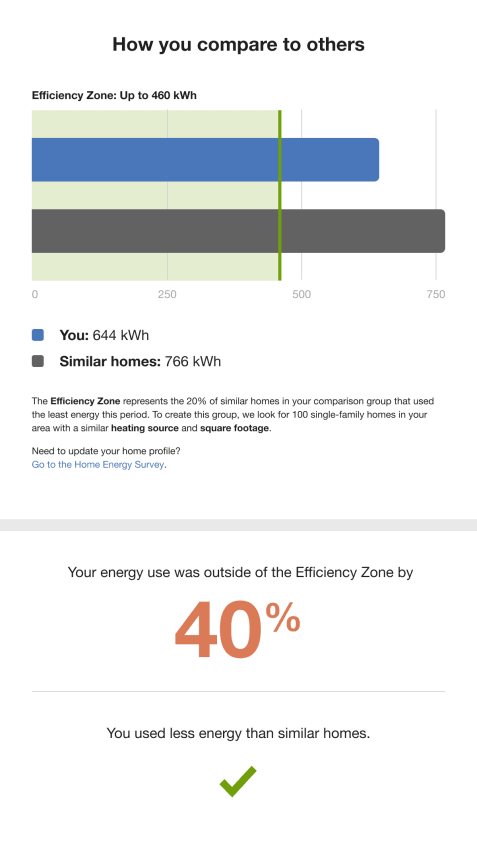
Heading: Introduces the comparison with the title "How you compare to others," inviting customers to explore their energy use in more detail.
Threshold: Displayed above the graph, the threshold label (for example, "Up to 500 kWh") represents the Efficiency Zone limit. This threshold is based on the average usage of the most efficient 20% of similar homes for that billing period and updates with each report. A light green shaded area and a darker green vertical line visually indicate the range and boundary of the Efficiency Zone.
Graph: Shows the customer's energy use ("You") compared to Similar Homes, with the Similar Homes bar representing the average usage of comparable households.
Hero Insight: A large, color-coded percentage that highlights the customer's usage relative to Similar Homes.
- Green indicates the customer is within the Efficiency Zone (aligned with a "Great" state).
- Orange indicates the customer is outside the Efficiency Zone (aligned with a "Fair" state).
The hero insight has three primary states:
- Great: In the Efficiency Zone
- Good or Fair: Outside the Efficiency Zone
- Fair: Higher than Similar Homes
Explainer Text: Describes the data used in the comparison and provides guidance on how customers can update or refine this information through the Home Energy Analysis.
Secondary Insight: Appears below the hero metric and varies based on the customer's usage. Customers within the Efficiency Zone or using less than similar homes see a positive indicator (such as a green check), while those outside the zone see a negative indicator (such as an orange "X"), signaling an opportunity to improve. There are several possible states:
- Great: In the Efficiency Zone
- Great: Near the Efficiency Zone
- Good: Lower than Similar Homes
- Good: About the same as Similar Homes
- Fair: Not in the Efficiency Zone
Customer Bill Alignment: In some cases, a customer's billing periods do not align exactly with those of their comparison groups. To ensure accurate comparisons, similar homes' energy usage is adjusted to match the customer's billing periods. This is done by pro-rating, or "time-shifting," the data based on the degree of overlap between billing cycles. The adjusted values are then used to calculate the averages for similar homes.
User Experience Variations
The user experience varies for customers depending upon their service types, available data, costs, and locale. Note that the following list indicates the primary user experience variations, not all possible variations.
Fuel Type
Gas-only and dual-fuel customers see variations in both the units and language used in the Efficiency Zone module. For gas-only customers, electricity units (kWh) are replaced with therms, while dual-fuel customers see usage displayed in "units." The insight text is also adjusted accordingly: "electricity" is replaced with "natural gas" for gas-only customers and "energy" for dual-fuel customers.
Explainer Text
The explainer text varies depending on the available customer data.
- Full Data:If square footage, heating source, home type, and fuel type are available, the text reads: "To create this group, we look for 100 single-family homes in your area with a similar heating source and square footage."
- Home Size Data:If square footage, home type, and fuel type are available, the text reads: "To create this group, we look for 100 single-family homes in your area with a similar square footage."
- Minimum Data:If only home type and fuel type are available, the text reads: "To create this group, we look for 100 single-family homes in your area that we can compare you with."
Substituting the Neighbor Comparison for the Efficiency Zone
Utilities have the option of including a version of the Three-Bar Neighbor Comparison in their report instead of the Efficiency Zone module. Substituting the Neighbor Comparison for the Efficiency Zone module does not impact the Energy Use Benchmark.
Welcome Report and Limited Income Welcome Report (for Legacy Customers)
The upper right corner of the module includes a number that corresponds to the Efficiency Zone highlight in the Welcome.
Annual Report
The Efficiency Zone for the Annual report includes the following variations:
- Heading: The heading is, "How your use compares to others over the last [XX] months."
- Hero Insight: The hero insight graph shows usage for the previous 12 months (or portion thereof) instead of the usual one or two month summary.
Peak Focused Normative Comparison
The Peak Focused Normative Comparison module helps customers understand how their energy use compares to their neighbors. It compares the customer ("You") to "Efficient Neighbors" and "Average Neighbors," and assigns a performance category such as Fair, Good, or Great to indicate how their electricity use compares. Results are displayed in a horizontal bar graph, along with total electricity usage values to provide context for how peak usage relates to overall consumption. Based on the customer's performance category, an insight message below the graph either highlights opportunities for additional savings or recognizes strong performance relative to neighbors.
Appears in: Peak Focused Report
Requirements
Utility Requirements
| Category | Description |
|---|---|
| Required Cloud Service | Energy Efficiency Cloud Service |
| Scale | Maximum of 300,000 a week. |
Customer Requirements
| Category | Description |
|---|---|
| Billing Frequency | Monthly or bi-monthly. |
| Data Delivery Frequency | Monthly, bi-monthly, or quarterly. |
| Data Requirements | Billing data and third-party data. |
| Data History | A minimum of one historical bill. |
| Data Coverage | Not applicable. |
| Supported Fuels | Electric-only. |
Limitations
This modules is only available as part of the Peak Focused Report for customers on Time of Use rate plans. It also supports customers who receive demand charges on their Time of Use rate plans.
User Experience
This section describes the user experience for a customer with good usage.
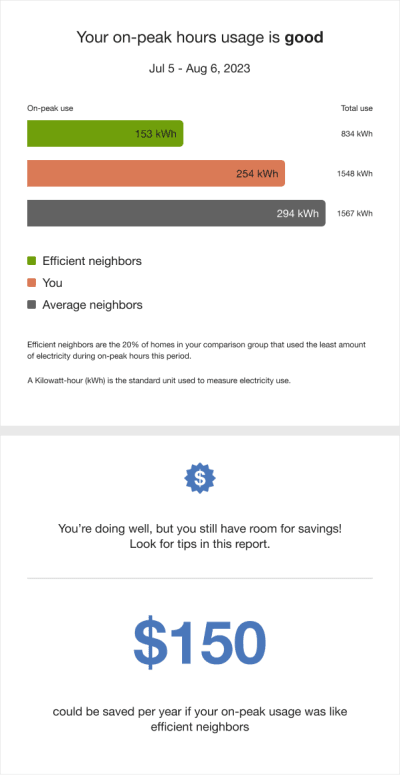
Header: Informs the customer that the module compares their on-peak energy use to that of their neighbors.
Bar Chart: Displays energy usage for each comparison group, typically ordered from lowest to highest.
- You: Represents the customer's energy use, usually shown in a color aligned with the utility's brand.
- Average Neighbors: Shows the average energy use of all neighbors, typically displayed in a neutral color such as gray.
- Efficient Neighbors: Represents the usage threshold for the most efficient 20% of neighbors. This is typically shown in green, a color associated with energy efficiency. The value reflects the 20th percentile rather than an average, and is used to define the efficiency benchmark.
Explainer Text: Appears below the chart and explains how the comparison is calculated. It defines efficient neighbors as the 20% of similar homes that use the least energy and clarifies the units used in the comparison.
Insight Statement: Appears alongside the chart and explains the customer's performance. Each performance state includes tailored top and bottom insights.
- Billing Period: Displayed at the top of the insight section, indicating the timeframe covered.
-
Top Insight: Shows either a percentage or a message indicating how much more or less energy the customer used compared to efficient neighbors. The color reflects the customer's performance.
-
Bottom Insight: Provides additional context, either highlighting potential savings or reinforcing performance. The savings version estimates annual cost differences using the customer's Time of Use rate, while the percentage version shows how usage compares to neighbors.
User Experience Variations
The user experience of the feature may vary for customers and utilities depending on their service types (gas, electricity, dual fuel, and so on), available data, costs, locale, and other factors.
Insight Statement Variations
Insight messaging adjusts based on how the customer's cost or savings compares to defined thresholds:
- Monetary: Used when cost or savings values exceed the defined threshold.
- Fallback: Used when cost or savings values do not exceed the threshold.
- Alternative insights: Used when the fallback state is active and the usage percentage exceeds 99%.
Neighbors and Similar Homes Language
Utilities can configure the module to use either "similar homes" or "neighbors" terminology. This allows the comparison to better align with customer context. For example, "neighbors" may be less clear in rural areas with dispersed homes or in dense urban settings with diverse housing types. While the terminology can change, the underlying comparison group remains the same; only the wording in the insights is adjusted.
Icons
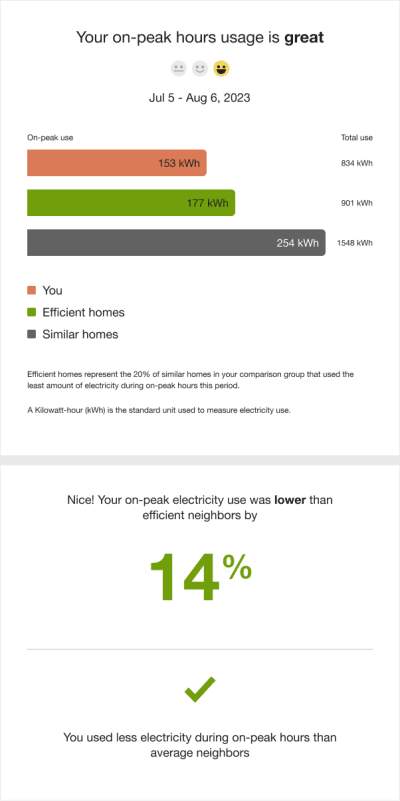
Utilities can choose to include an icon set displayed alongside the main insight heading. Each set visually represents the customer's performance state (Fair, Good, or Great), matching the normative comparison result. Available options include:
- No icons (Off)
- Smiley icons (neutral or thinking expressions)
- Leaf icons
- Medal icons
The following image is an example of the module with neutral smiley icons enabled for a customer in the "great" usage state.
The following is an example of the thinking comprehension-focus smiley icons for the "fair" usage state.

The following is an example of the environmental-focus leaf icons for the "good" usage state.

The following is an example of the competitive medal icons for the "great" usage state.

Seasonal Normative Comparison
The Seasonal Normative Comparison module compares the customer's cooling or heating energy use from the previous season against that of other homes. This comparison motivates them to reduce cooling energy use during the upcoming extreme weather season.
Appears in: Seasonal Report
Requirements
Utility Requirements
| Category | Description |
|---|---|
| Required Cloud Service | Energy Efficiency Cloud Service |
| Scale | Not applicable. |
Customer Requirements
| Category | Description |
|---|---|
| Billing Frequency | Monthly, bi-monthly, or quarterly. |
| Data Delivery Frequency | Monthly, bi-monthly, or quarterly. |
| Data Requirements |
Energy disaggregation data is required to get an estimate of the customer's heating and cooling usage. Minimum: The minimum requirement is average energy use data for the households in a utility's region. This data is typically obtained from public data sources. The module then uses the customer's responses to the Home Energy Analysis survey to adjust the averages and yield personalized results about the customer's heating or cooling usage. Recommended: The recommended approach is to use weather data and at least six historical bills, as this will provide more accurate heating and cooling disaggregation results. Additional data requirements may apply depending on the utility's setup, configuration, and whether any advanced data science models are used. |
| Data History | A minimum of one historical bill. Additional data history requirements apply depending on the utility's setup, configuration, and any data science model usage. |
| Data Coverage | Not applicable. |
| Supported Fuels | Electricity, gas, and dual fuel. |
User Experience
This section describes the summer Seasonal Normative Comparison experience for a customer whose program includes an Efficiency Zone.
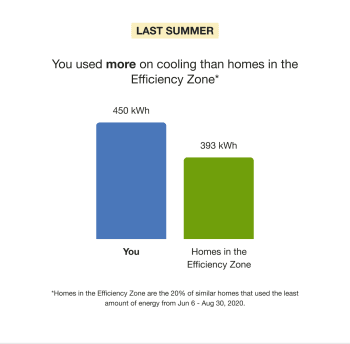
Normative Message Label: Identifies the comparison season, such as last summer or winter.
Insight: Appears above the bar chart and summarizes whether the customer used more or less energy, by fuel type, compared to efficient homes during the selected season.
Bar Chart: Displays the energy usage for each group in the comparison.
You: Represents the customer's energy use, typically shown in a color aligned with the utility's brand.
Homes in the Efficiency Zone: Shows the average energy use of neighbors within the Efficiency Zone, typically displayed in green. The label aligns with the version of the normative comparison used in the customer's report.
Explainer:Appears below the chart and defines the Efficiency Zone, along with the relevant seasonal date range.
User Experience Variations
The user experience varies for customers depending upon their service types, available data, costs, and locale. Note that the following list indicates the primary user experience variations, not all possible variations.
Winter Seasonal Variation
The winter version of the Seasonal Neighbor Comparison compares the customers heating energy use from the previous winter to other homes in order to motivate them to reduce heating energy use during the upcoming winter. It varies from the summer version of the report in the following ways:
- Normative Message Label: Identifies the comparison season. For example, "Last Winter."
- Insight: A state-dependent insight focused on heating use summarizes the information in the bar chart. For example, "You used more on heating than homes in the Efficiency Zone."
Normative Comparison Type
The type of normative comparison used in this module is consistent with the comparison graph used in the customer'sProgress Report. For example, customers who receive aThree-Bar Neighbor Comparison as part of their Progress Report receive a three-bar Seasonal Neighbor Comparison. "Efficient homes" is used for Neighbor Comparison recipients in the insight, graph label, and explainer areas for each data state.
Insight Variations
The module insight varies depending on the graph state. The following table provides an example of how the module changes for a customer whose program includes an Efficiency Zone.
| Graph State | Insight |
|---|---|
| Less than efficient homes | You used less on [cooling/heating] than homes in the Efficiency Zone |
| More than efficient homes | You used more on [cooling/heating] than homes in the Efficiency Zone |
| Same as efficient homes | Nice work! You used about the same amount of energy on [cooling/heating] as homes in the Efficiency Zone |