Working in the Waterfall Setup Tab
The Waterfall Setup tab in the Rule Designer shows the full sequence of rule sets and rules for the selected model. This makes it easy to see all of the settings for your rule sets and rules in one place.
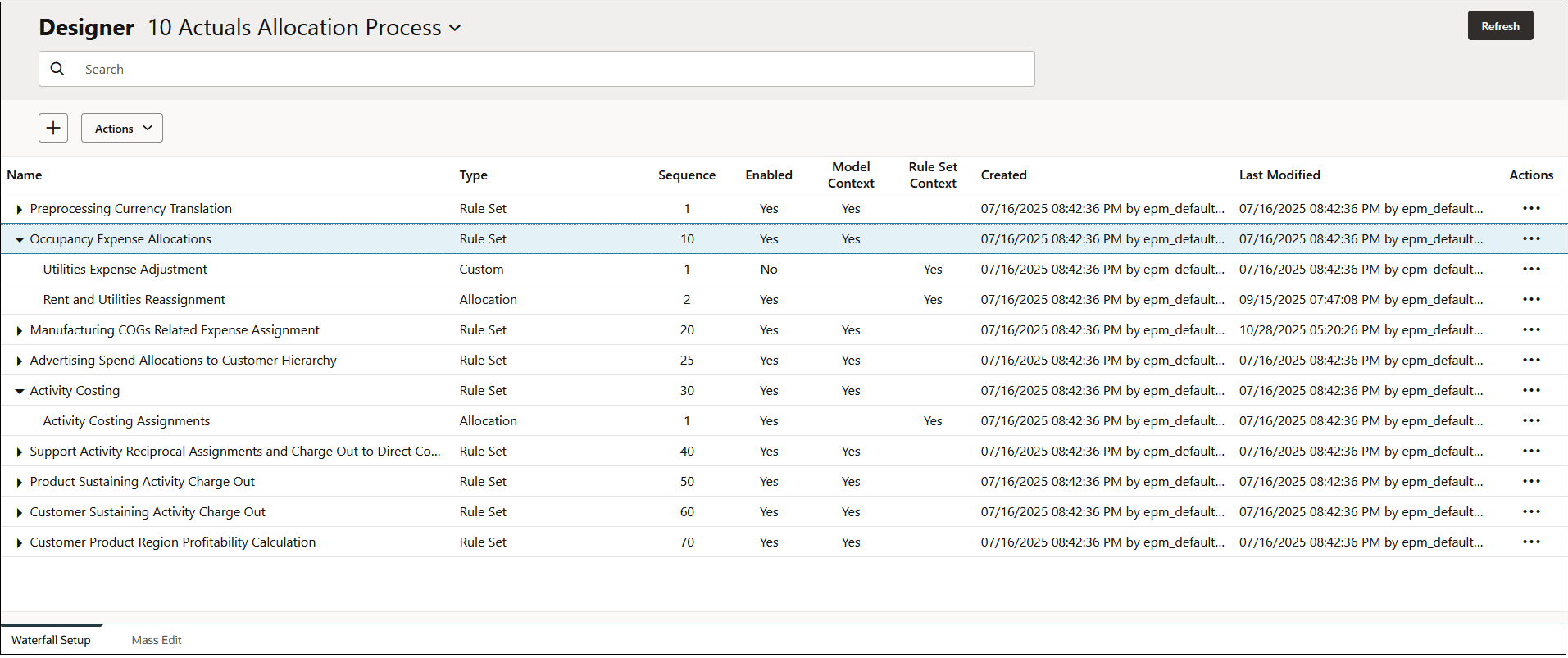
Tasks that you can perform on the Waterfall Setup tab include:
-
Click
 to define which columns display on the Waterfall Setup tab (see Defining the Columns that Display on the Waterfall Setup Tab)
-
Click or drag a tile into the Search field to filter which rule sets and rules are displayed (see Filtering Which Rule Sets and Rules are Displayed on the Waterfall Setup Tab)
-
Click
 to add a new rule set or rule (see Creating a Rule Set, Creating an Allocation Rule Definition, and Creating a Custom Rule Definition).
-
Click
 to create a rule set context (see Creating a Rule Set Context) or
to enter detailed information about a rule.
to create a rule set context (see Creating a Rule Set Context) or
to enter detailed information about a rule.
-
Click
 to see detailed information about a rule set or rule (see Inspecting Rule Set and Rule Details on the Waterfall Setup Tab).
-
Click
 to duplicate a rule set or a rule (see Duplicating a Rule Set and Duplicating a Rule).
-
Click
 and select a report from the drop-down:
- Model Documentation Report: (see Generating a Model Documentation Report)
- Rule Data Validatio Report: (see Running a Rule Data Validation Report for Allocation Rules)
- View Rule Data: (see Using Ad Hoc to Analyze Allocation Rule Data)
-
Click
 to delete a rule set or rule.
Note:
- When you delete a rule from the Waterfall Setup tab in the Rule Designer, the rule member assigned to that rule is not also deleted. You delete rule members on the Edit Member Properties page accessed from the Application, Dimensions tab. See Deleting Members,
- Deleting a rule does not delete the associated rule member in Oracle Essbase.
Tip:
-
To refresh the rule sets and rules displayed on the Waterfall Setup tab, click Refresh.
- Click
 to use PCM Agent to perform tasks such as listing rule sets and rules,
enabling and disabling rules, copying rules to a rule set or model, and adding
and replacing members. See Using PCM Agent in the Waterfall Setup Tab
to use PCM Agent to perform tasks such as listing rule sets and rules,
enabling and disabling rules, copying rules to a rule set or model, and adding
and replacing members. See Using PCM Agent in the Waterfall Setup Tab