FSM Service Scheduling and Assignment
Field Service Management (FSM) lets dispatchers schedule service work and assign technicians through the Schedule Board. Dispatchers can review assigned and unassigned work, change eligible tasks, and save those changes to NetSuite.
This topic explains Schedule Board scheduling and assignment, including the conditions that allow changes and the relationship with work available in FSM Mobile.
How It Works
The Schedule Board displays time-based work on resource rows. In the standard configuration, resources are employees. Service work uses CRM tasks and, when Project Management is enabled, project tasks. A Schedule Board resource represents the person whose work is displayed in a row. A Mobile resource defines a Mobile page or supporting data and has a different purpose.
The following diagram shows the results of a successful save, a failed save, and a lost response:
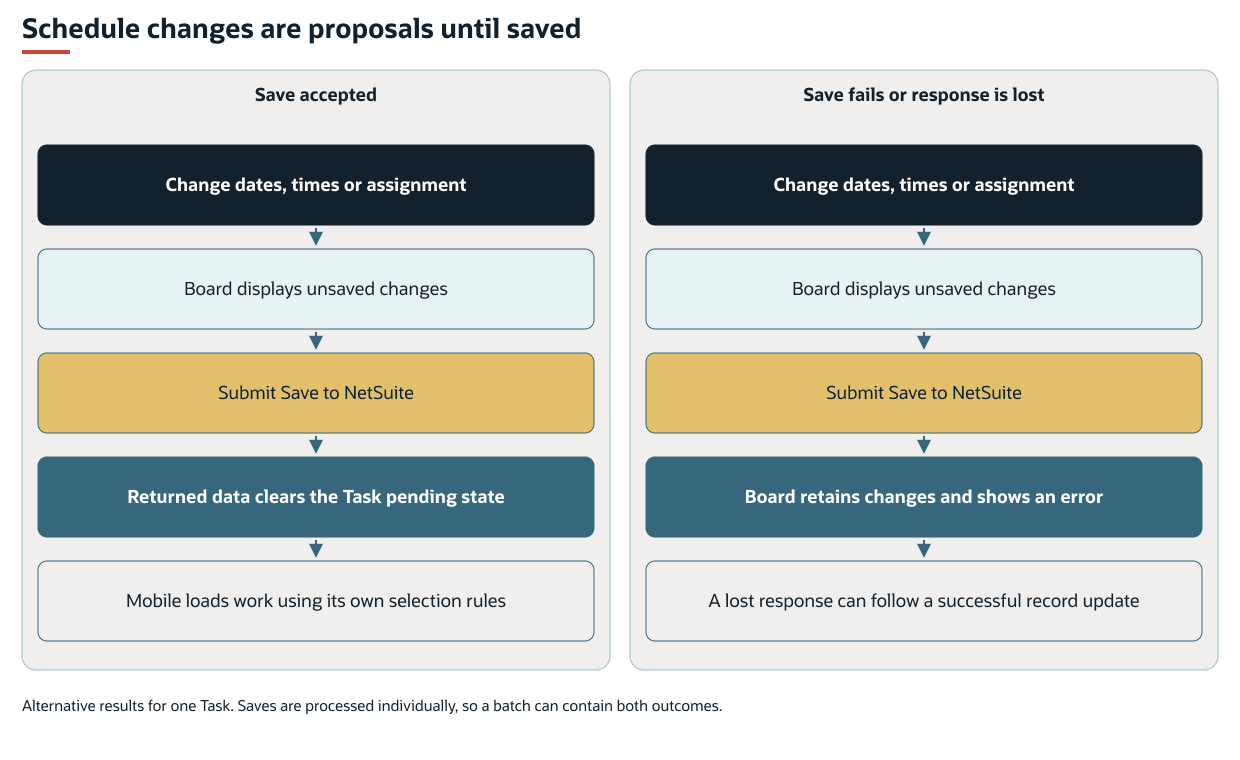
The following table describes four scheduling outcomes.
|
Outcome |
Meaning |
|---|---|
|
Work appears on the Board |
The underlying searches and current view include the task and relevant resources. Display alone does not make the task or relevant resources editable. |
|
A dispatcher changes work |
The Board shows proposed dates, times, or assignments. These changes remain unsaved until submitted. |
|
NetSuite accepts the change |
The Board receives the saved task data and clears that task's unsaved state. |
|
A technician loads the work |
FSM Mobile retrieves tasks using its own assignment, date, and other selection rules. A saved Board change does not update an offline device immediately. |
Dragging can change a task's date, scheduled times, and assignments. Different drag modes control which values change. Moving a task normally retains its scheduled length. Adjusting its start or end changes that length. Time rounding and the task's date limits also apply.
For the controls used to select, drag, and save work, see Scheduling.
Prerequisites
The following access, record, feature, and calendar conditions apply to scheduling and assignment:
-
The dispatcher needs Schedule Board access and a role enabled for Board editing. Viewing the Board and using its editing controls are separate conditions. The published device and licensing requirements are described in Setting Up FSM Schedule Board.
-
The relevant employee and task records must be included by the Board's searches. The standard employee search includes active employees with a Field Service Region and applies subsidiary visibility restrictions where applicable.
-
Project task scheduling requires Project Management. Assignment targets must be employees marked as Project Resources, and the project and task must satisfy the editing conditions in Visibility and Editing Eligibility.
-
Associated work calendars supply availability information. Project task saves require the applicable resource calendars to calculate work. CRM task dragging does not require a calendar. Employee setup and FSM Mobile access are described in Managing FSM Employee Records.
Key Behaviors
This section describes how the feature responds to different conditions and actions.
Visibility and Editing Eligibility
Searches determine which records the Board loads. Panel filters and text searches then narrow the loaded information shown to the dispatcher. A panel filter cannot bring back a record excluded by the underlying search. Resource-panel filters affect the resource rows. Assigned-panel filters affect the events shown on those rows and in the assigned list. Unassigned-panel filters affect their own event list. Matching filter definitions across panels do not synchronize their selected values.
Assigned work is requested for the Board's date range and resource rows currently visible in its viewport. The unassigned-work panel requests work without an assignee, using its own date range. Resource filters and task filters serve different purposes: finding an employee does not establish that a task can be changed or assigned to that employee.
Changing the date, view, or visible resources requests work for that view. The Board also periodically requests updated data using its configured refresh interval.
Board Searches and Request Tags
The following table lists standard search selection rules before panel filtering.
|
Records |
Standard Selection Logic |
|---|---|
|
Employees |
Active employees with a Field Service Region. In OneWorld accounts, the employee's subsidiary must be included in the dispatcher's view scope unless that scope is unrestricted. |
|
CRM tasks |
The primary assignee matches a requested resource, or a nonempty Field Service Task Team contains a requested resource. The task start date falls within the requested date range. In OneWorld accounts, the subsidiary rule uses the first available subsidiary from Case, Project, or Company. Tasks without any of those subsidiary values are also included. |
|
Additional CRM tasks on related cases |
A nested task search finds case IDs using those same resource, start-date, and subsidiary conditions. An outer |
|
Project tasks, when enabled |
A nested search finds project task IDs with an assignment to a requested resource. The task end date must be on or after the requested start. The task start date must be on or before the requested end. In OneWorld accounts, the project subsidiary must be in the view scope unless that scope is unrestricted. The outer search retrieves those IDs without restricting individual assignment rows, so the mapped resource list includes all assignments. |
|
Employee non working days |
The employee matches a requested resource and the non-working-day dates overlap the requested range. There is no separate |
|
Resource allocations, when enabled |
The employee matches a requested resource and the allocation dates overlap the requested range. There is no separate |
The contextual searches depend on the requested resource set rather than repeating the employee subsidiary formula. Expanding that resource set can therefore also expand the contextual data retrieved. The Board's loaded data, displayed data, and editable data are separate results.
The following table describes the tags that the server resolves for each search request.
|
Tag |
Meaning and Effect |
|---|---|
|
|
Requested resource IDs. Assigned requests use visible resource rows. Unassigned requests are translated to the |
|
|
The first and last requested dates. Assigned requests use Board dates. Unassigned requests use the unassigned panel's date range. |
|
|
Subsidiary IDs derived from the current user and role for viewing. A value of |
|
|
Subsidiary IDs derived from the current user and role for editing. Standard employee and task |
In a OneWorld account, FSM derives editing scope from the user's subsidiary plus the role's configured subsidiary list. Unless the role allows viewing all subsidiaries, view scope uses that restricted list. The Administrator role uses unrestricted scope. Outside OneWorld, the subsidiary conditions are omitted. These values do not replace NetSuite record permissions. A dispatcher can have a wider view scope than editing scope, so visible work can remain read-only.
The following table lists standard editing conditions.
|
Record or Target |
Editing Conditions |
|---|---|
|
CRM task |
Must have a Not Started status and fall within the dispatcher's applicable subsidiary editing scope. In Progress and Completed tasks can be displayed but cannot be selected for scheduling changes. |
|
Project task |
Must be Not Started, use a Fixed Start constraint, and belong to a project that allows all resources for tasks. The project must also fall within the applicable subsidiary editing scope. |
|
Employee receiving an assignment |
Must be eligible within the applicable subsidiary editing scope. Project task assignments additionally require the employee's Project Resource setting. |
|
Employee non working day or resource allocation block |
Provides scheduling context and is read-only on the Board. It is not an editable service-task assignment. |
These are the standard conditions. Account configuration can affect record selection and editing behavior. Enabling Board editing does not make every displayed task or employee eligible. For configuration risks and the controlled removal of CRM case expansion, see Search Filters and Panel Filters.
Date and Time Changes and Confirmed Bookings
An ordinary drag changes the task's date and can change the resource row. The drag normally retains the existing clock time. Other drag modes move the scheduled time or adjust the start or end. The standard editing step is 15 minutes. During Board date/time editing, CRM tasks are constrained to one day. Project tasks can span days.
For a CRM task with a confirmed booking, the Board prevents drag changes to its scheduled dates and times. An otherwise eligible task can still have its assignment changed. Booking confirmation and task status are separate conditions.
The selected Board time zone affects the displayed schedule and the interpretation of a drag position. Time-zone sourcing and synchronization belong to FSM Service Time Zone Sourcing and Synchronization.
Primary Assignees and Teams
A CRM task has a primary assignee and can also have a Field Service Task Team. The Board shows the task against its associated resources. Assignment dragging can change the primary assignee or a team member. Team drag mode can add, move, or remove secondary assignees. The result depends on which assignment is dragged and the selected mode.
A project task uses its resource-assignment list. Its assignments do not represent the CRM task primary-assignee and Field Service Task Team fields.
Dragging work from the assigned or unassigned panels onto a Board resource row can change assignments. A normal drag onto the Unassigned panel clears the task's primary and secondary assignments. Team drag mode can remove a member without changing other assignments. Removing assignments does not delete the underlying task or remove its scheduled dates.
Multiple and Linked Tasks
The Board supports selecting and changing more than one editable task. The mapped event property link supplies a shared value for linked focus and selection. In the standard CRM task mapping, this value is the case number. Focusing a task also focuses other visible tasks with the same nonempty link value. Selecting an editable task also selects the other visible, editable tasks with that value. Tasks outside the current filtered view are not included by that linked selection.
The CRM task nested search described in Board Searches and Request Tags loads additional tasks on related cases. The retrieval and the link mapping serve separate purposes. The search determines which related records are loaded. The link mapping groups visible records for focus and selection. The standard project task, employee non working day, and resource allocation mappings do not provide this case-link value. The project task nested search instead preserves complete assignment data.
Setting the CRM task's mapped link to false disables its automatic linked focus and selection. Removing the CRM case-expansion search as well restricts retrieval to the retained direct resource/date/subsidiary criteria. Neither change removes the task's case relationship or the record hyperlinks displayed in task information. See Removing Linked CRM Task Selection and Case Expansion for the example.
Individual linked tasks can be selected separately using the selection controls. Manual multiple-task selection remains available when automatic linking is disabled. A combined drag still applies each task's own editing and booking conditions. It does not make every selected task accept the same change.
Recurring Work
Scheduling a recurring task is not a substitute for editing its recurrence definition. For individual-occurrence changes and future-series behavior, see FSM Case and Task Recurrence.
Availability and Skills
Work calendars supply working days, daily hours, and calendar exceptions. The standard employee mapping uses the native NetSuite Work Calendar when Project Management is enabled and the Field Service Work Calendar otherwise. Nonworking time can be shown as shading or separate employee non working day blocks. Resource allocations can also be displayed when Project Management and Resource Allocations are enabled.
Employee skills and task skill requirements can help dispatchers filter and compare work. Calendar information, skills, and existing assignments support the dispatcher's decision. The standard drag behavior does not automatically choose a technician, require a skill match, restrict every task to working hours, or prevent overlapping assignments.
Availability in FSM Mobile
A saved assignment must also satisfy the technician's FSM Mobile task-selection rules. The standard CRM task selection includes the primary assignee and task-team members. Project tasks are selected through their resource assignments. Task Type and date criteria also apply.
Task visibility and completion authority are separate. For CRM tasks, the standard FSM Mobile mapping gives completion authority to the primary assignee. See Task List Screen for task-list behavior and FSM Mobile Workflow for starting and completing work.
Record Interactions
The following table describes how each record interacts with scheduling and assignment.
|
Record |
Scheduling Behavior |
|---|---|
|
CRM task |
Receives saved primary-assignee, task-team, planned date, time, and due-date changes. Scheduling uses planned values. It does not itself record the technician's actual start or completion. |
|
Project task |
Receives a start date and time and rebuilt resource assignments. Work is recalculated from the requested interval and resource calendars. NetSuite supplies the resulting task dates. |
|
Employee |
Supplies the assignable resource, subsidiary eligibility, Project Resource setting, skills, and calendar association. Board assignment changes update the task, rather than the employee's calendar or skills. |
|
Project and case |
Supply task context and applicable subsidiary information. Project settings also determine project task editing eligibility. The case relationship supports linked CRM task selection. |
|
Work calendar |
Supplies availability display and the working time used to calculate project task resource work. |
|
Employee non working day and resource allocation |
Supply separate contextual blocks. These are distinct from task assignments and work-calendar exceptions. |
By default, CRM task saves enable the assignee-notification email option in NetSuite. A successful task save does not confirm email delivery. These native notifications are separate from FSM service-report and notification processing.
Saving a project task can change its planned or estimated work as well as its assignments. The calculation uses each assigned resource's calendar, including working hours, weekdays, and calendar exception dates. For resources already assigned, Units, Service Item, Unit Cost, Unit Price, and applicable Billing Class are retained. The Units value affects the calculated work. The saved result can therefore differ from the interval proposed on the Board.
Processing Model and Lifecycle
Schedule Board changes are submitted through the interactive Field Service Scheduler Suitelet. Save submits task changes during the Board session.
The following table describes the stages and results of saving Schedule Board changes.
|
Stage |
Board Behavior and Result |
|---|---|
|
Changed, unsaved |
The task displays the proposed values with a red border. The Sync menu counts tasks with pending changes. Periodic Board refresh does not submit those changes. |
|
Queued or saving |
Save submits changed tasks individually. The Board distinguishes queued tasks from the task currently being saved using synchronization indicators. |
|
Saved |
The returned task data replaces the previous saved values, and that task's pending changes and save-error state are cleared. |
|
Save failed |
The task retains its proposed changes and displays an error icon and unsaved border. Other queued tasks can still save. The batch can finish with a mixture of saved and unsaved tasks. |
The main Save and Cancel controls apply to all unsaved tasks. A task's context menu can save or cancel that task alone. Cancel discards unsaved Board changes. It does not undo changes already accepted by NetSuite. Saving again can resubmit a failed task.
A save error means the Board did not receive a successful result. If the response is lost after NetSuite updates the task, the record can already contain the change even though the Board retains its unsaved state.
The Board's pending and saving indicators describe Board changes, not the task's Not Started, In Progress, or Completed business status. A successful Board save and a subsequent FSM Mobile load are also separate results.
Configuration
For the supported settings, defaults, and examples, see Configuring FSM Service Scheduling and Assignment.
Administrators can change which employees and events are loaded and how the employees and events are filtered and presented. Administrators can also change the editing time step and the roles enabled for editing. Calendar associations and eligibility mappings affect the information available and the assignments permitted through the Board.
For these settings and defaults, see FSM Schedule Board Configuration. Preserve the required task identity, dates, assignment mappings, access conditions, and applicable calendar relationships. Another event or resource does not necessarily support the same scheduling and save behavior as a standard CRM task or project task.
Limitations and Constraints
The following limitations apply:
-
Scheduling and assignment are dispatcher actions. This capability does not provide automatic schedule optimization or automatic route planning.
-
Board filters, eligibility checks, and availability display do not guarantee a conflict-free or skill-matched assignment.
-
Batch Save is not an all-or-nothing operation. A failure on one task does not reverse other successful saves.
-
Unsaved Board changes are not the saved NetSuite schedule.
-
A saved assignment does not grant FSM Mobile access or guarantee that a task is immediately available on every device.
Completed task colors: In the standard Schedule Board configuration, completed CRM tasks and project tasks are displayed in gray, regardless of the selected color group. Their colors therefore no longer distinguish priority, Task Type, or Case Type.
Project task assignment display: Project tasks support multiple assigned resources with no designated lead or separate team-member roles. The Schedule Board uses the same primary and secondary assignment styling as for CRM tasks. It highlights the first resource in the loaded assignment list and shows the others muted. The loaded order can change when the Board refreshes, so a different person may be highlighted even though the assignments have not changed. This visual emphasis does not identify a lead.
Related Processes and Procedures
See the following topics for related procedures:
-
Scheduling: select tasks, apply drag modes, assign or unassign resources, and submit changes.
-
FSM Mobile Workflow: start and complete assigned field work.
Related Topics
See the following related topics:
-
FSM Schedule Board Configuration: Board data, preferences, filters, and editing controls.
-
Schedule Board Resources, Tasks, and Filtering: resource and task panels and their filters.
-
FSM Maps, Geo-location and Tracking: map display, directions, and location tracking.
-
FSM Case and CRM Task Status Automation: task and case business-status transitions.
-
FSM Service Time Zone Sourcing and Synchronization: time-zone sourcing and related time-field behavior.
-
FSM Case and Task Recurrence: individual occurrences and recurring-series behavior.
-
FSM CRM Task Record, FSM Project Task Record, and FSM Project Record: record definitions and fields.
-
FSM Script Reference: Suitelet identity and shared deployment and execution reference.